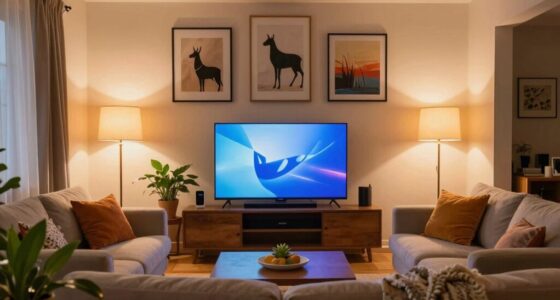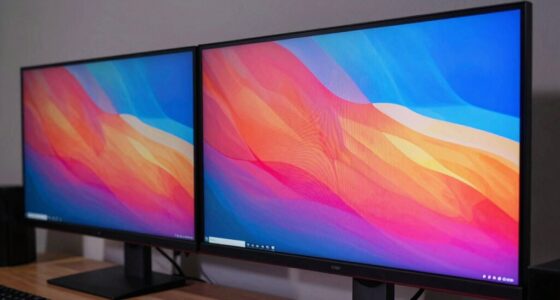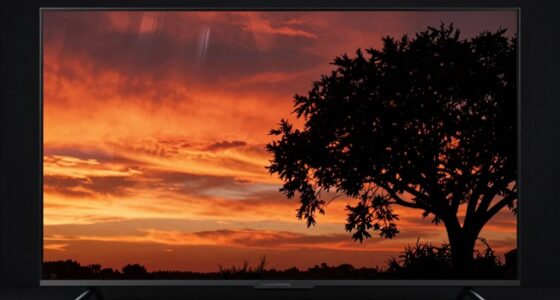
TV picture modes like Movie, Standard, Vivid, and Game are designed to enhance your viewing experience based on the content. Movie mode delivers cinematic enjoyment with accurate colors, while Standard mode offers a balanced look for general content. Vivid mode amps up brightness and saturation for striking visuals, and Game mode is perfect for reducing lag during gaming. Each mode serves a specific purpose, and there’s plenty more to discover about optimizing your settings for the best experience.
Key Takeaways
- Movie Mode enhances color calibration and contrast, ideal for films and drama, providing a cinematic viewing experience.
- Standard Mode offers a balanced approach for everyday content, maintaining true-to-life colors and comfort for long viewing sessions.
- Vivid Mode boosts saturation and contrast for vibrant visuals, perfect for bright scenes but may result in artificial color representation.
- Game Mode minimizes input lag and improves refresh rates, ensuring smooth gameplay and clarity during fast-paced gaming actions.
- Experimenting with picture modes enriches the viewing experience, allowing users to tailor settings for different types of content.
TOZO HT3 Hybrid Noise Cancelling Headphones, 90H Battery Life Wireless Over Ear Bluetooth 6.0 Foldable Headset, AI Voice Assistant with 5 Mics, Connect 2 Devices and Hi-Res Sound, 32 EQ Audio Presets
[Adaptive Noise Cancellation for Travel, Work & Focus] Four noise-canceling microphones automatically detect environmental noise in subways, airplanes,...
As an affiliate, we earn on qualifying purchases.
What Are TV Picture Modes and Why Do They Matter?
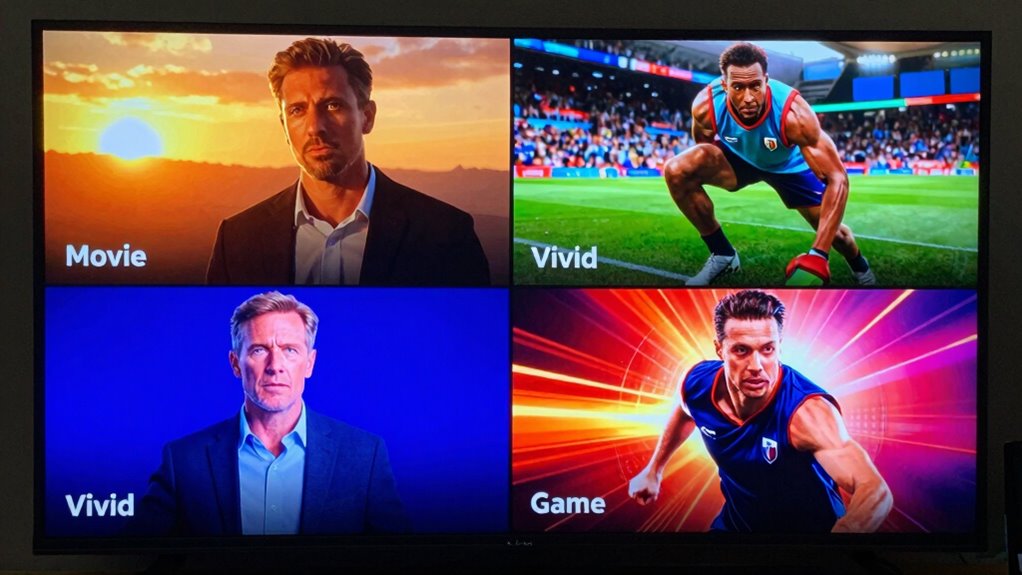
When you sit down to watch your favorite show, the picture mode on your TV can make a huge difference in your viewing experience. Picture modes, like Standard, Vivid, and Game, adjust settings to enhance specific visual elements. Each mode influences brightness, contrast, and color saturation, leading to different picture mode effects. For instance, Vivid mode can make colors pop, while Standard mode offers a more natural look. By selecting the right mode, you’re engaging in visual optimization tailored to the content you’re viewing. Whether it’s a fast-paced action scene or a serene landscape, adjusting the picture mode can elevate the imagery, making it more enjoyable and immersive. So, don’t overlook this simple setting—it’s vital for your overall viewing pleasure.
Hybrid Active Noise Cancelling Bluetooth 6.0 Headphones 120H Playtime 6 ENC Clear Call Mic, Over Ear Headphones Wireless with Hi-Res Audio Comfort Earcup Low Latency ANC Headphone for Travel Workout
Hybrid Active Noise Cancelling & 40mm Powerful Sound: Powered by advanced hybrid active noise cancelling with dual-feed technology,...
As an affiliate, we earn on qualifying purchases.
The Movie Mode: Enhancing Your TV Picture Experience
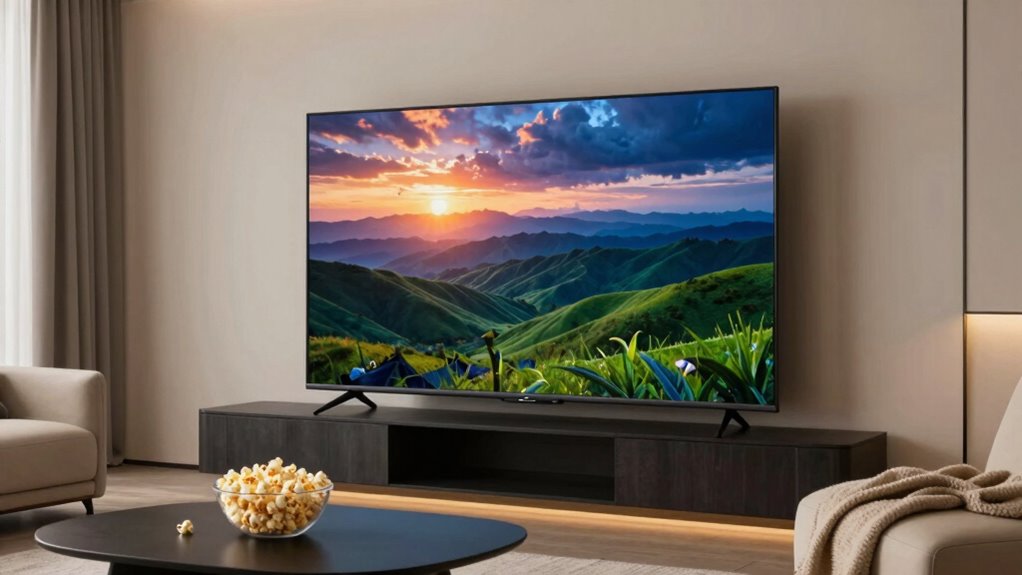
When you switch to Movie Mode, you’ll notice ideal color calibration that makes your favorite films pop. This mode also enhances cinematic contrast levels, providing a more immersive viewing experience. Plus, it preserves detail, ensuring you don’t miss any nuances in the visuals.
Optimal Color Calibration
While some may overlook the importance of color calibration, using the Movie mode on your TV can greatly enhance your viewing experience. Proper color calibration techniques guarantee that colors appear as intended by the filmmakers, bringing a more immersive feel to your favorite films. To achieve this, consider investing in calibration tools like colorimeters or spectrophotometers. These devices help you adjust color balance, brightness, and contrast accurately. Additionally, many TVs offer built-in calibration features, making it easier than ever to fine-tune your settings. By dedicating a little time to superior color calibration, you’ll notice richer hues and more realistic skin tones, ultimately transforming your home theater into a cinematic haven. Regularly updating your display settings ensures consistent picture quality over time. Enjoy the difference that proper calibration can make!
Cinematic Contrast Levels
Enhancing your viewing experience hinges not just on color calibration, but also on achieving the right contrast levels, especially in Movie mode. This mode is designed to deliver cinematic depth, making dark scenes richer and bright areas more vibrant. By adjusting contrast enhancement, you can bring out details that might otherwise be lost, immersing yourself in the film’s atmosphere. Proper contrast levels play a vital role in creating a more immersive and authentic cinematic experience. When you set your TV to Movie mode, it optimizes these contrast levels, providing a more balanced picture that mirrors what filmmakers intended. You’ll notice that shadows are deeper, highlights stand out, and colors appear more lifelike. So, take the time to fine-tune your contrast settings, and you’ll elevate your viewing experience to a whole new level.
Enhanced Detail Preservation
Movie mode not only optimizes contrast levels but also excels in preserving detail across all scenes. This setting focuses on detail enhancement, ensuring you experience every nuance in the picture. You’ll notice improved picture clarity, especially in darker scenes where subtle textures come to life. Unlike other modes, movie mode minimizes artificial sharpening, which can distort images and create an unnatural look. Instead, it emphasizes natural detail retention, making your viewing experience more immersive. Whether you’re watching a dramatic film or a nature documentary, you’ll appreciate how this mode captures the essential qualities of the content. Additionally, color accuracy plays a vital role in maintaining true-to-life images, enhancing your overall viewing experience. So, for the best visual experience, switch to movie mode and enjoy enhanced details that truly bring your favorite shows and films to life.

Soundcore by Anker Q20i Hybrid Active Noise Cancelling Headphones, Wireless Over-Ear Bluetooth, 40H Long ANC Playtime, Hi-Res Audio, Big Bass, Customize via an App, Transparency Mode
Hybrid Active Noise Cancelling: 2 internal and 2 external mics work in tandem to detect external noise and...
As an affiliate, we earn on qualifying purchases.
The Standard Mode: Balanced Viewing for Everyday Content
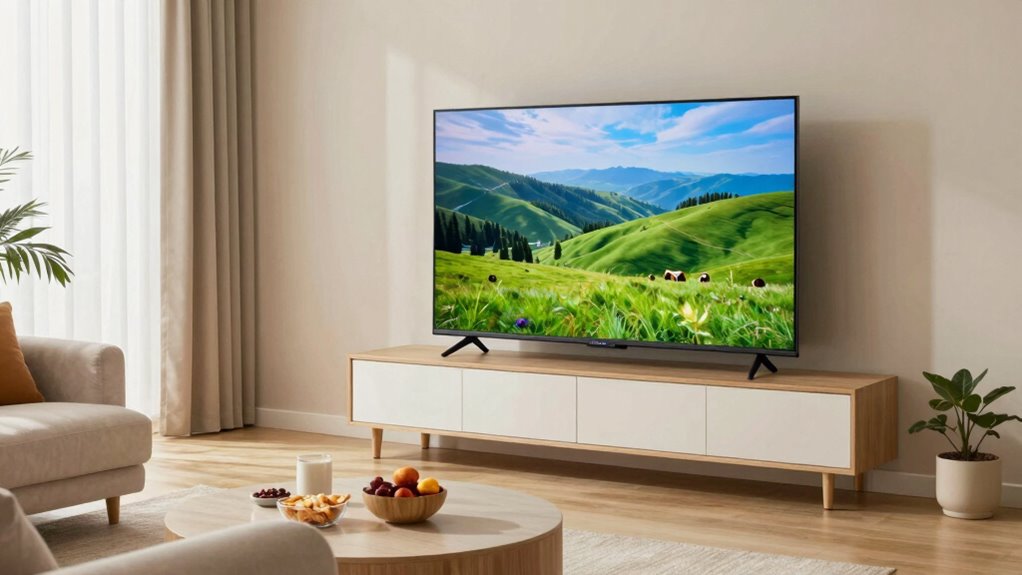
When you’re settling in for a night of TV, the Standard Mode is your go-to option. It strikes the perfect balance, delivering color accuracy without overwhelming your senses. This mode is designed for everyday content, ensuring a comfortable viewing experience for any genre.
Ideal For Daily Viewing
For everyday viewing, the Standard Mode on your TV strikes a perfect balance between color accuracy and brightness. It’s the ideal setting for daily content, whether you’re watching the news, a sitcom, or a documentary. With this mode, you get a natural look that won’t overwhelm your eyes and is comfortable for long viewing sessions. Additionally, adaptive lighting can optimize your TV’s display based on ambient room conditions to further enhance your viewing experience.
Color Accuracy And Balance
Color accuracy and balance are essential for an enjoyable viewing experience, especially in the Standard Mode. This mode aims to provide a neutral picture that maintains true-to-life colors, making it perfect for everyday content. You’ll notice how well it handles color grading, ensuring that skin tones look natural and landscapes appear vibrant without being overly saturated.
In Standard Mode, visual clarity is a priority, allowing you to appreciate details in your favorite shows and movies. Whether you’re watching a drama or a documentary, this mode helps create a balanced environment, avoiding the extreme brightness of Vivid or the muted tones of Movie mode. By choosing Standard, you get a reliable viewing experience that enhances every scene.

JBL Tune 770NC - Adaptive Noise Cancelling with Smart Ambient Wireless Over-Ear Headphones, Bluetooth 5.3, Up to 70H Battery Life with Speed Charge, Lightweight, Comfortable & Foldable Design (Black)
Adaptive Noise Cancelling with Smart Ambient: Adaptive Noise Cancelling means zero distractions whether you’re studying or getting lost...
As an affiliate, we earn on qualifying purchases.
The Vivid Mode: Perfect for Bright Scenes and Colors
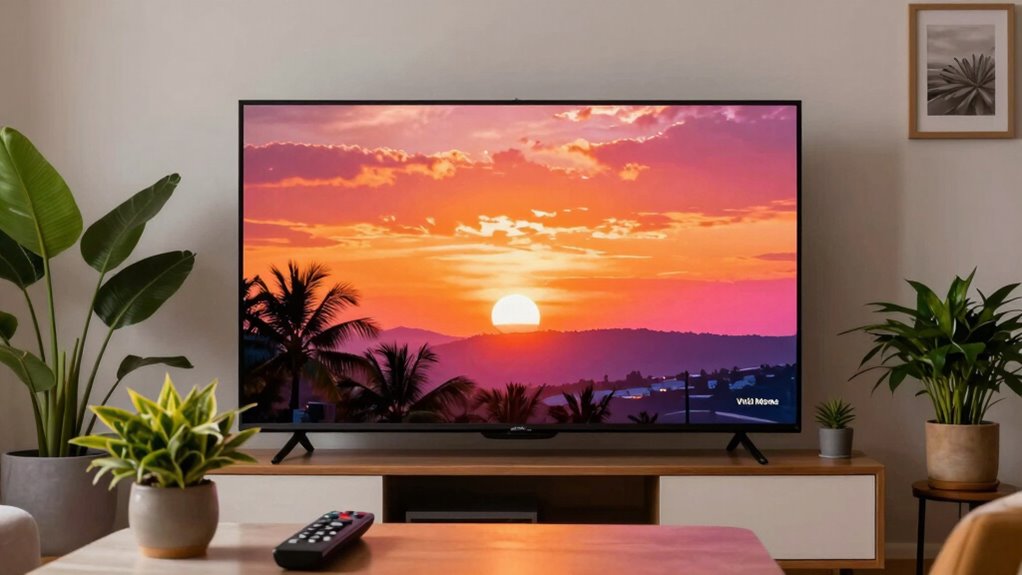
If you want your TV to deliver eye-popping visuals, the Vivid mode is an excellent choice for bright scenes and vibrant colors. This setting enhances saturation and contrast, ensuring you experience vivid vibrancy in every frame. Whether you’re watching a colorful nature documentary or an action-packed movie, Vivid mode brings out the best in bright scenes, making them pop with life. You’ll notice richer hues and sharper details, which can make your viewing experience more immersive. Additionally, using high-quality content can maximize the benefits of this mode, ensuring that the enhanced visuals truly stand out. Keep in mind that image processing techniques are often optimized in Vivid mode to produce these striking images, but this can sometimes lead to artificial-looking colors. However, keep in mind that this mode might not be ideal for all content, especially if you prefer a more natural look. But for those moments when you crave heightened color and brightness, Vivid mode will surely satisfy your visual desires.
The Game Mode: Optimizing TV Settings for Gamers
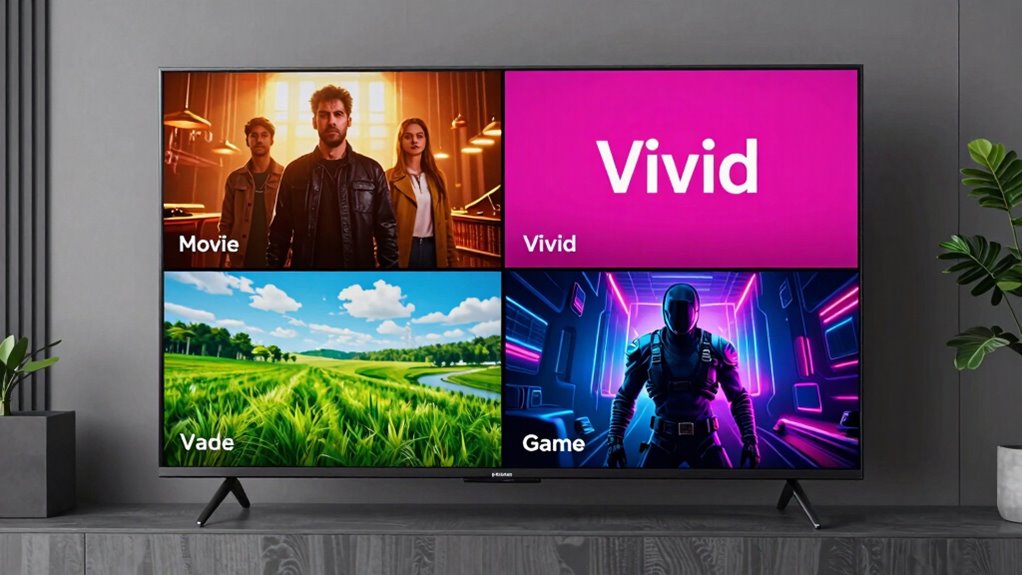
While Vivid mode amplifies colors for a striking viewing experience, gamers need a different approach to maximize their gameplay. Game mode optimizes your TV settings by reducing input lag and increasing refresh rate, ensuring smooth action during intense moments. Here’s how you can adjust your settings:
| Setting | Purpose |
|---|---|
| Input Lag | Reduces delay for faster response time |
| Refresh Rate | Enhances motion clarity |
Best Use Cases for Each Picture Mode
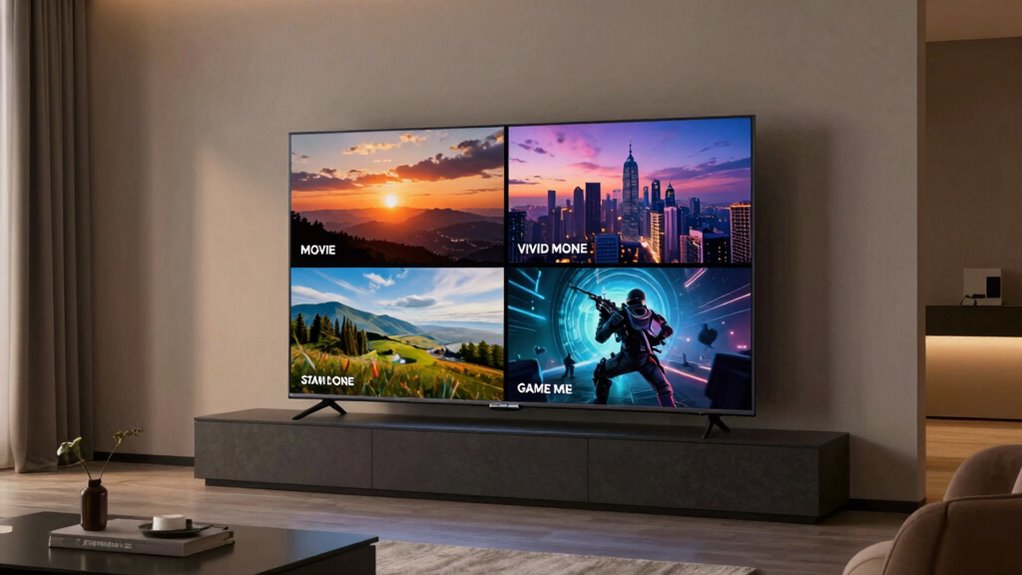
Understanding the best use cases for each picture mode can greatly enhance your viewing experience. For movies, choose the Movie mode for its advanced calibration, delivering rich colors and deep blacks, perfect for cinematic enjoyment. If you’re watching everyday TV shows, the Standard mode offers a balanced picture that works well in various lighting conditions. When you want vibrant visuals for sports or animated content, the Vivid mode boosts brightness and color saturation, making everything pop. Finally, Game mode is tailored for gamers, reducing input lag and optimizing fast-moving scenes. By doing some mode comparisons, you can find what suits your viewing habits best and enjoy content the way it was meant to be seen.
How to Customize Your TV Picture Settings
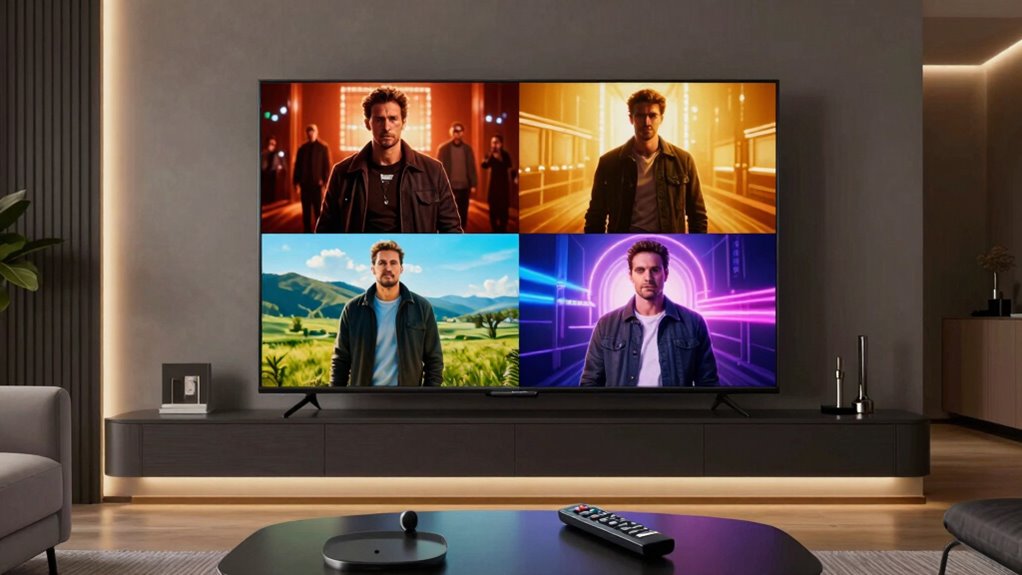
Customizing your TV picture settings can elevate your viewing experience beyond the standard modes. Start by accessing the picture settings menu on your TV. From there, you can perform a custom picture calibration, adjusting contrast, sharpness, color, and tint to match your preferences. Focus on finding the ideal brightness settings for your room’s lighting; a well-lit room may require higher brightness, while a darker space can benefit from lower levels. Experiment with the gamma settings to enhance shadow detail, and don’t forget to adjust the color temperature for a more natural look. Once you’ve made these adjustments, take some time to watch different content to verify everything looks just right. Enjoy your personalized viewing experience!
Common Issues With Picture Modes and Solutions
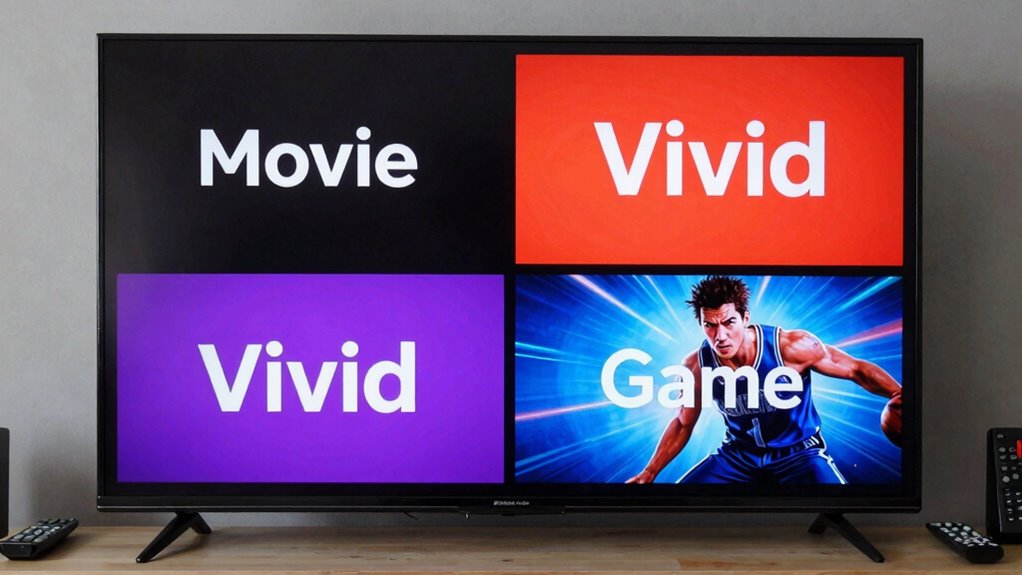
Even the best picture modes can sometimes lead to frustrating issues that detract from your viewing experience. You might encounter common calibration issues, like colors appearing too bright or washed out. This often happens when switching between picture modes, leading to picture mode confusion. To resolve these problems, start by resetting your settings to the factory defaults. Then, try calibrating your TV using tools available online or through apps designed for this purpose. If you’re still struggling, consider consulting a professional calibrator who can fine-tune your settings for peak performance. Remember, each picture mode serves a different purpose, so don’t hesitate to experiment until you find the one that enhances your viewing experience the most. Additionally, understanding picture mode functions can help you select the optimal setting for different content types.
Conclusion: Elevate Your TV Viewing Experience With Picture Modes
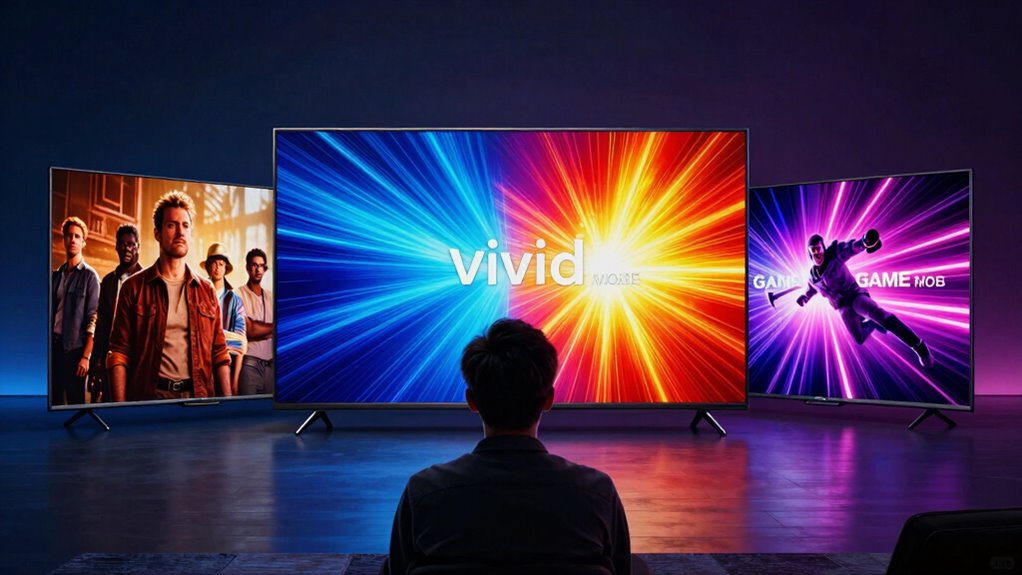
By exploring the various picture modes available on your TV, you can greatly enhance your viewing experience. Tailoring settings to your specific content types will align with your viewing preferences, ensuring you get the most out of every show or movie.
| Picture Mode | Best For |
|---|---|
| Movie | Films, Drama |
| Standard | General Viewing |
| Vivid | Sports, Animation |
| Game | Video Games |
Experiment with these modes to see how they transform your enjoyment. You’ll find that each mode caters to different content types, allowing you to immerse yourself fully in every scene. So go ahead, adjust those settings, and elevate your TV time!
Frequently Asked Questions
Can Picture Modes Affect Energy Consumption of My TV?
Yes, picture modes can affect your TV’s energy consumption. Different modes adjust brightness and color settings, which directly impacts power consumption. For instance, a vivid mode often uses more energy due to increased brightness, while a movie mode might be more energy efficient. By choosing the right picture mode, you can enhance energy efficiency and potentially lower your electricity bill. So, consider how each mode affects your TV’s power usage.
Do Picture Modes Vary Between Different TV Brands?
Yes, picture modes do vary between different TV brands. When you look into brand comparisons, you’ll notice that each manufacturer offers unique settings tailored to their technology and user preferences. Some brands might have more advanced modes, while others stick to basic options. These mode variations can greatly impact your viewing experience, so it’s worth exploring what each brand has to offer before making your choice.
Is It Possible to Create a Custom Picture Mode?
Absolutely, you can create a custom picture mode on most modern TVs. In fact, around 70% of users prefer adjusting settings to fit their unique viewing experiences. By diving into the TV’s menu, you can tweak brightness, contrast, and color balance according to your preferences. These custom settings allow you to tailor the picture quality for movies, sports, or gaming, ensuring you enjoy every moment just the way you like it!
How Do Picture Modes Affect Motion Blur and Lag?
Picture modes greatly impact motion clarity and lag reduction. When you switch to a mode designed for fast-paced action, you’ll often experience improved motion clarity, minimizing blur during quick scenes. Conversely, some modes prioritize vibrant colors over performance, which can increase lag and detract from your viewing experience. By selecting the right mode for your content, you can enhance both clarity and responsiveness, making your viewing more enjoyable and immersive.
Can I Use Multiple Picture Modes During the Same Viewing Session?
Absolutely, you can switch picture modes during your viewing session! Picture mode versatility really enhances your viewing experience, letting you tailor settings to match different scenes or activities. For instance, you might prefer a vibrant mode for action-packed sequences and a softer setting for serene scenes. This dynamic adjustment keeps your engagement high and guarantees you’re enjoying every moment to its fullest. So, feel free to experiment with modes as you watch!
Conclusion
By understanding and utilizing your TV’s picture modes, you can truly elevate your viewing experience. Each mode serves a purpose, whether you’re binge-watching a movie or gaming with friends. Don’t just settle for the default settings; take the time to customize them to fit your preferences. Remember, a little tweak here and there can make all the difference. So, go ahead—fine-tune those settings and enjoy your shows like never before!