
TL;DR

Get movie nights delivered free with Prime
- Fast, free delivery on millions of items
- Prime Video, Amazon Music and more included
- Member-only deals all year
Streaming media players are devices or built-in apps that connect your screen to internet video and audio services. They provide access to apps, but subscriptions, supported formats, internet quality, and device compatibility determine what you can actually watch and how it looks. Choose based on the services you use, your TV and sound system, and the interface you prefer.
Your new streaming player can promise 4K video and still show a soft, blurry picture. That’s because the little box or stick is only one link in a chain that includes your TV, internet connection, app, title, and sometimes your subscription plan.
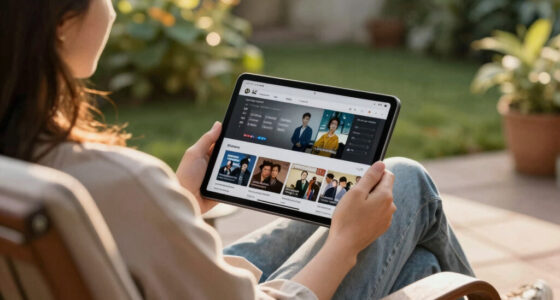
Streaming media players give you a way to open video and audio apps on a screen. Some are dedicated devices, such as a Roku, Fire TV Stick, Apple TV, or Google TV device; others are built into smart TVs, game consoles, phones, and computers. They let people watch services such as Netflix, YouTube, and Disney+, but they don’t automatically pay for those services.
This guide explains what a player actually does, when you might need a separate one, what picture and sound labels mean, and how to choose a device that suits your home. You’ll also get a practical checklist for avoiding the common mistake of buying impressive specifications that your setup can’t use.
A streaming player opens apps; it does not automatically include subscriptions or every movie.
Check your smart TV’s apps and speed before buying a separate device.
4K, HDR, and Dolby formats require compatible content, services, screens, and audio gear.
Weak Wi-Fi can cause buffering even when your internet plan looks fast.
Compare ongoing service costs and review the player’s privacy settings after setup.
What a streaming player gives you—and what it doesn’t
A streaming media player is a device or app that connects a screen to video and audio delivered over the internet. It opens services like Netflix or YouTube, then sends their picture and sound to your TV or other screen. The player is the doorway; the content and subscriptions come from the services you choose.
This distinction affects both what you can watch and what you pay. A Fire TV Stick or Roku may include apps you recognize, but that doesn’t mean a Netflix or Disney+ subscription comes with it. You may need to sign in to accounts you already pay for, start a subscription, rent a movie, or use a free ad-supported service. Buying a film gives you access to a particular title under the store’s terms; subscribing gives you access to a changing catalog for as long as the subscription remains active. Store terms vary, so check whether a purchase is a rental or a lasting library item before paying.
Think of a player like a radio: it tunes in to stations, but it doesn’t give you every song ever recorded. If your family uses YouTube and one paid service, those apps may cover your evening viewing; a new device won’t add a movie that the service doesn’t carry. That also means the same player can feel useful to one household and limiting to another, depending on its services. App availability can differ by device and country, so a familiar brand name alone doesn’t guarantee access to every app you want.
Before you buy, check the apps you actually use and whether they work in your region. Then check whether you already have a suitable app on your TV. This quick inventory tells you whether a new device solves a real access problem or simply duplicates what’s already on your screen.
Products Worth Considering

eufy Security Floodlight Camera E30, 2K

Dyson Big Ball Multi Floor Canister Vacuum, Yellow

Roborock Robot Vacuum and Mop Combo with Self-Empty Dock
As an affiliate, we earn on qualifying purchases.
Decide whether your smart TV needs a separate player
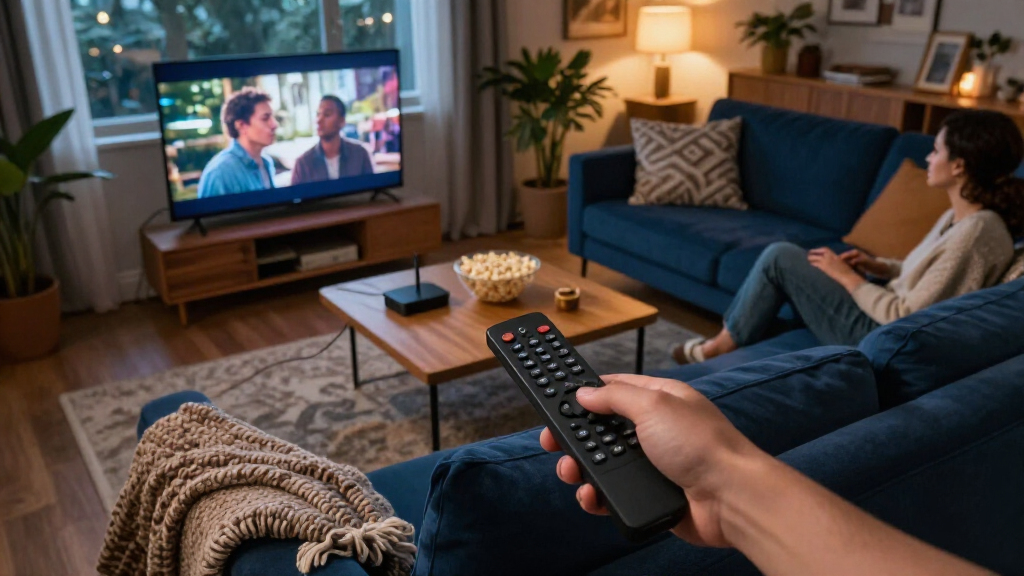
You may not need a separate player if your smart TV already runs the apps you use smoothly and receives updates. A dedicated device becomes useful when the TV’s interface feels sluggish, an app is missing, or you want a different search and remote experience. The key tradeoff is convenience: the TV’s built-in system means one fewer device and remote, while a separate player can add a quicker or better-supported interface without replacing the screen.
Imagine an older television that takes several seconds to open each app and no longer offers a service your household watches. A small streaming stick could provide a fresher interface without replacing a perfectly good screen. That can postpone a costly TV upgrade, though it won’t improve the TV’s own picture quality or fix a weak internet connection. By contrast, a recent smart TV that quickly opens your apps and supports your audio setup may make another device unnecessary; adding one could mean another remote, input, and interface to manage.
Separate players can differ in app selection, recommendations, voice search, accessibility tools, and updates. Those differences matter in daily use: a strong search feature can help you find a title across services, while useful accessibility options can make menus and playback easier for more people. Some players also connect with compatible smart-home gear, letting you view a camera feed or control lights. These features depend on the player platform and your equipment, so check compatibility before counting on them.
Compare the experience you already have against what a new device would add. If you mostly want familiar apps, simplicity may matter more than another home screen. If your TV has become slow or unsupported, a player can extend its usefulness—but older hardware can still lose app access over time. Check how long the device is supported and whether it receives updates, since a low purchase price is less attractive if the apps you rely on stop working soon.
Choose a player by matching it to your TV, sound, and budget
The best streaming player is the one that supports your services and works with the screen and sound system you own. Start with your TV’s resolution and HDMI ports, then check the apps, Wi-Fi needs, audio formats, remote, and price. Each feature has value only if it solves a need: a premium box adds little if your television can’t use its headline picture features, and extra connectivity may not help if your Wi-Fi already reaches the room reliably.
Suppose your living-room TV supports 4K and Dolby Vision, while your bedroom set is an older 1080p model. A 4K device in the living room could make sense if your chosen service offers compatible titles; the bedroom may need only an inexpensive HD player. And if you mainly watch free video apps, paying extra for advanced surround sound may not improve your everyday viewing. Spending more is worthwhile when the features match how you watch, not simply because the device has a longer specification list.
Use this order when comparing options:
- Check app access: Confirm the services you use are available for the device and your country. Missing a favorite app can outweigh a faster processor or a more polished remote.
- Check connections: Match the device’s HDMI needs to an available TV port and confirm Wi-Fi coverage or Ethernet options. A port that lacks the required format support can limit what the player sends to the TV.
- Match picture and sound: Compare supported resolution and formats with your TV, soundbar, or receiver. The payoff from advanced formats depends on every relevant part of the setup supporting them.
- Compare the interface: Look at search, recommendations, voice features, accessibility, and remote controls. These are the features you interact with every day, so a layout you find easy to use can matter more than a small speed difference.
- Count ongoing costs: Add subscriptions, rentals, purchases, and any ads you expect to see. The device price is a one-time cost, but regular services can become the larger expense over time.
For instance, someone with a basic TV, stable Wi-Fi, and two favorite apps may value a simple, low-cost stick. A movie fan with a 4K display and surround system may prefer a model that supports the formats their equipment can play. These examples show why there’s no universally best player: the right balance depends on which improvements you’ll notice and use.
Understand what 4K, HDR, and Dolby labels really promise
A label such as 4K capable describes what a player can output under the right conditions; it does not promise that every show will appear in 4K. The player, TV, app, title, subscription tier, and internet connection all affect playback. HDR and audio formats have their own compatibility requirements, too. In practice, the label tells you what the device might support, while the rest of your setup determines whether you’ll see or hear that benefit.
Here’s a living-room example: you own a 4K TV and a 4K-capable player, but the film is available only in HD on your service, or your plan doesn’t include its highest-quality stream. The TV can’t invent missing detail. Even when a title is available in 4K, a weak or inconsistent connection may cause the service to lower the stream quality to keep it playing. For a sharp image, each relevant link needs to support the format and the connection needs to deliver it steadily.
HDR10 and Dolby Vision describe ways to deliver a wider range of brightness and color when the content and display support them. That can make bright highlights and dark scenes look more detailed, but the effect varies with the title and the TV’s capabilities. Dolby Atmos is an audio format that requires compatible playback gear for its intended effect. A soundbar that lacks Atmos support may still play the soundtrack, but it won’t reproduce that format as designed; the sound may still be enjoyable, just without the intended Atmos presentation.
When comparing devices, treat format names as a compatibility checklist, not a picture-quality guarantee. If your TV supports HDR10 but not Dolby Vision, a player with Dolby Vision may still be useful for other reasons, yet that specific format won’t show on your current screen. Check the exact model and service details before paying extra, and weigh the cost against the chance you’ll upgrade the rest of the setup later.
Fix buffering by checking the connection before replacing the player
Buffering and soft video usually point to a connection or service problem, so check your network before buying new hardware. Streaming quality depends on available bandwidth, signal strength, and congestion, as well as the service and device. A stable connection in the room matters more than a fast plan number on paper: the plan describes the connection to your home, but Wi-Fi conditions determine how well that connection reaches the player.
Picture a TV at the far end of a house, behind two thick walls from the router. A speed test beside the router might look excellent while the player receives a weak, uneven Wi-Fi signal. Moving the router, reducing obstructions, switching to a less congested Wi-Fi band, or using Ethernet where available may help more than replacing the streaming stick. These steps address where the signal is lost; a faster player cannot compensate for a connection that keeps dropping or slowing down.
Try these checks in order:
- Restart the player and router to clear a temporary connection issue.
- Test another app or device to see whether the trouble affects one service or the whole home. A problem limited to one app points toward that service or its software; problems everywhere suggest a wider connection issue.
- Move the player or improve Wi-Fi coverage if the signal is weak in that room. This helps distinguish a local signal problem from a slow connection entering the home.
- Check the title and plan if only some content looks less sharp. Different titles or subscription tiers may offer different stream quality.
- Update the app and device if an app freezes or won’t open. Software problems can resemble network trouble even when the connection is stable.
For example, if YouTube plays smoothly but one subscription app buffers, the service or app may be the problem. If every service stutters during a busy evening, network congestion is a stronger suspect. A wired Ethernet link can help when the device and home layout support it because it avoids Wi-Fi interference, though it may require running a cable or adding an adapter.
Keep costs, ads, and viewing data in view
A streaming player’s purchase price is only one part of its cost. Monthly subscriptions, rentals, movie purchases, and ad-supported viewing can all add up, while the device itself may be inexpensive or premium-priced. The best fit depends on what your household watches and how often you use each service. Thinking about the total cost helps you avoid treating a cheap device as a bargain if it leads to recurring expenses you don’t want.
Say you buy a low-cost stick because it seems like a bargain, then sign up for several services to find the shows you want. The monthly bills can soon outweigh the hardware cost. A free ad-supported service may fill quiet evenings, but you trade uninterrupted viewing for commercial breaks and a catalog that can change. It may be a good fit if saving money matters more than watching a particular title on demand; it’s less useful if the shows you want are elsewhere.
Privacy deserves a quick look, too. Players and services may collect usage or diagnostic data, and some platforms use viewing activity to personalize recommendations or ads. That can make the home screen more relevant, but it also means the platform uses information about what you watch. Settings differ by manufacturer and service. If you share a TV with children or guests, check profile, voice, and viewing-history settings so the home screen reflects how you want the device used.
Before checkout, write down your regular services and their monthly costs, then decide which ones you’ll keep. Check privacy controls after setup, including options related to personalized ads or diagnostics. A few minutes in settings can make the home screen feel more relevant and give you a clearer sense of what data sharing you’ve allowed.
Frequently Asked Questions
Does a streaming player include Netflix or other subscriptions?
Usually, the player gives you an app or a way to install one, but you still need a subscription for paid services. Some devices may include a trial or promotional offer, so check its terms and end date before relying on it.
Can I watch free movies or live TV?
Many players support free ad-funded apps and services, and some offer live channels. What you can watch depends on the app, your location, and the current catalog; local broadcast channels may require an antenna rather than an internet player.
Will any streaming player work with my television?
Check that the TV has the required HDMI connection and supports the resolution you want. Also confirm the player’s power and network needs; an older TV may work with an HD player even if it cannot display 4K or HDR.
Why does my 4K player show a lower-quality picture?
The title, app, subscription tier, internet stability, and TV settings can all limit playback quality. Try another known 4K title, check the service plan, and confirm that the player is connected to a TV port that supports the needed format.
Can I use a streaming player while traveling?
Often, you can connect a portable stick to a compatible TV and use available Wi-Fi, but service catalogs and account rules may change by country. Hotel networks can require a browser sign-in, and some devices may not handle that setup easily.
Conclusion
Choose a streaming player by starting with the services you use and the TV and sound system you already own. Then check app availability, connections, formats, interface, and ongoing costs; those details tell you more than a flashy feature list.
The right device should fade into the background: you pick a show, press play, and the room fills with a clear picture instead of a spinning loading wheel.