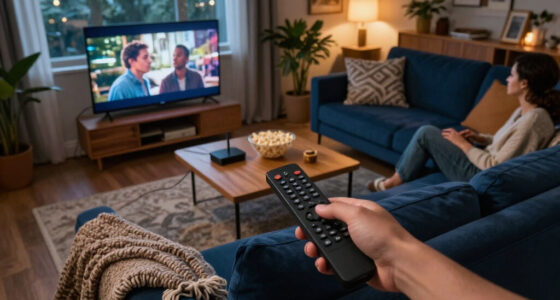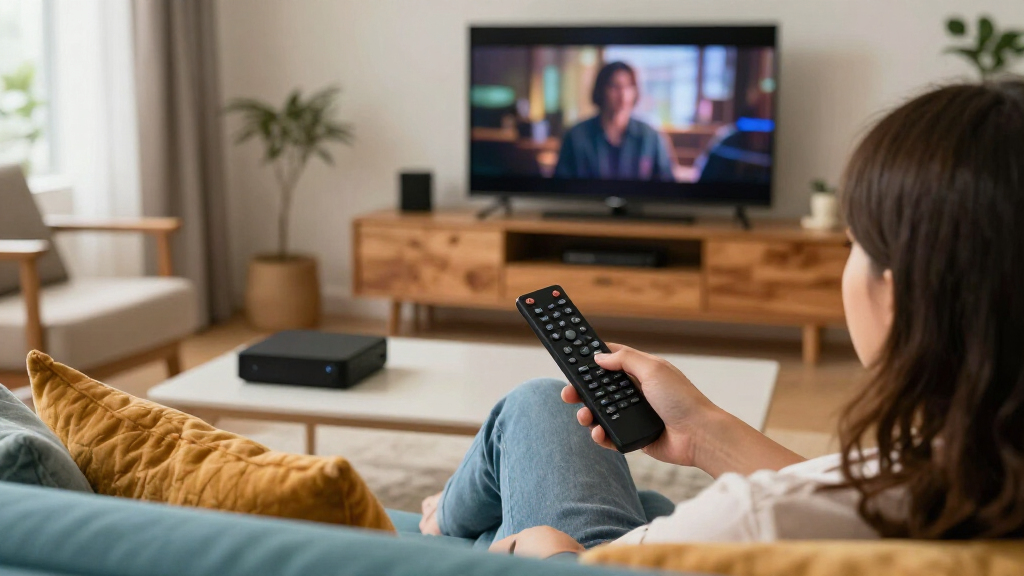

Set up a streaming media player so you can watch video apps on your TV. This guide is for first-time users with a compatible TV, a home Wi-Fi network, and any account details needed for their apps. You will connect the player, complete its on-screen setup, install or open a streaming app, and confirm that video and sound play. Allow about 20-40 minutes; setup can take longer if the player needs a software update.

Get movie nights delivered free with Prime
- Fast, free delivery on millions of items
- Prime Video, Amazon Music and more included
- Member-only deals all year

Amazon Fire TV Stick 4K Plus with AI-powered Fire TV Search, Wi-Fi 6, stream hundreds of thousands of movies and shows, free & li…
- ✔ Output resolution: Up to 2160p at 60 fps
- ✔ HDR formats: Dolby Vision, HDR10, HDR10+, HLG
- ✔ Audio support: Dolby Atmos, 7.1 surround, stereo, plus listed passthrough formats

Amazon Fire TV Stick 4K Select, start streaming in 4K, AI-powered search, and free & live TV, find shows faster with Alexa+
- ✔ Output resolution: Up to 2160p at 60 fps
- ✔ HDR and video formats: HDR10, HDR10+, HLG, H.265, H.264, VP9, AV1
- ✔ Audio support: HDMI passthrough for AC-3, E-AC-3, and E-AC-3-JOC

Roku Streaming Stick HD with Voice Remote
- ✔ Output resolution: 1920 × 1080 (1080p)
- ✔ Video codecs: H.264/AVC and AV1
- ✔ Connectivity: Wi-Fi and Bluetooth
Difficulty: Beginner | Time: 20-40 minutes
What You’ll Need
Tools & Materials:
- Streaming media player and its remote
- TV with an available HDMI port
- Power adapter or the power cable supplied with the player
- Working home Wi-Fi and its network name and password
- Phone, computer, or TV remote for account setup, if requested
Knowledge:
- Basic use of a TV remote
- How to find your Wi-Fi network name and password
- Login details for any streaming service you plan to use
Check the player’s box or product page for TV compatibility and power requirements. Some devices connect directly to an HDMI port; others use a short HDMI cable. A streaming player does not automatically include paid service subscriptions. Keep your TV remote nearby so you can select the correct input.
Amazon Fire TV Stick 4K Plus with AI-powered Fire TV Search, Wi-Fi 6, stream hundreds of thousands of movies and shows, free & li…
The Fire TV Stick 4K Plus earns our top spot because it combines the most extensive listed 4K feature set in this group with a voice remote designed to handle both streaming and basic TV controls. It supports Dolby Vision, HDR10+, and Dolby Atmos, whereas the Select lists HDR10+ but not Dolby Vision or Atmos. If your television and content support those formats, the Plus gives you more room to make use of them. Its Wi-Fi 6 support can also help keep streaming steady when several devices share a compatible router, though the benefit depends on having that router.The Alexa-led Fire TV experience connects search, recommendations, compatible smart-home controls, and cloud gaming in one interface. That breadth is an advantage for households already using Alexa or Amazon services, but Roku’s simpler home screen may be easier for viewers who mainly want to launch familiar apps. The Plus also needs external power, unlike Roku’s ability to draw power from the TV. Choose it for a feature-rich 4K setup; skip it if your screen is HD-only or you want the most pared-back interface.
Pros:
- Supports 4K output with Dolby Vision, HDR10+, and Dolby Atmos.
- Wi-Fi 6 support is useful with a compatible router and a busy home network.
- Alexa Voice Remote can search by voice and control compatible TV power and volume.
- Includes HDMI 2.1 with ARC input support and broad listed audio format support.
Cons:
- Requires a compatible 4K TV to benefit from its highest output and picture formats.
- Wi-Fi 6 support requires a Wi-Fi 6 router.
- Uses a power adapter, while the Roku stick can draw power from the TV.
Best for: Viewers with a 4K television who want Dolby Vision or Dolby Atmos support, use a compatible Wi-Fi 6 router, or value Alexa and smart-home features.
Not ideal for: Owners of HD-only televisions, people without a Wi-Fi 6 router who are choosing primarily for that feature, or viewers who prefer a more minimal streaming interface.
Bottom line: For a compatible 4K system, the Fire TV Stick 4K Plus offers the broadest mix of picture, audio, and wireless features in this lineup.
“For a compatible 4K system, the Fire TV Stick 4K Plus offers the broadest mix of picture, audio, and wireless features in this lineup.”
Amazon Fire TV Stick 4K Select, start streaming in 4K, AI-powered search, and free & live TV, find shows faster with Alexa+
For a buyer who wants to move from HD to 4K without prioritizing every premium format, the Fire TV Stick 4K Select is the practical middle choice. It supports 4K Ultra HD, HDR10+, HDR10, and HLG, and its Alexa remote searches across apps and controls compatible TV functions. Compared with the 4K Plus, its listed specifications omit Dolby Vision, Dolby Atmos, and Wi-Fi 6. That makes the Select easier to recommend when those features are not requirements, but less suitable when a television’s Dolby Vision support is part of the reason for upgrading.The Select shares the newer Fire TV interface and Alexa+ discovery features described for the Plus, along with access to a broad app selection and cloud gaming options. As with the Plus, cloud gaming depends on separate services and a compatible controller, and streaming apps may require subscriptions. Its power setup also needs an outlet, unlike the Roku stick’s TV-powered option. Choose the Select for a 4K set where HDR10+ is enough and Alexa search is appealing; Roku is a better match for an HD television, while the Plus makes more sense for the broader Dolby and Wi-Fi feature set.
Pros:
- Supports 4K output and HDR10+ for compatible televisions and content.
- Alexa Voice Remote supports voice search and compatible TV power and volume controls.
- Offers dual-band Wi-Fi with MIMO and Bluetooth 5.0.
- Includes an HDMI extender, power adapter, and batteries in the box.
Cons:
- Dolby Vision and Dolby Atmos are not listed among its supported formats.
- Does not specify Wi-Fi 6, unlike the 4K Plus.
- Requires an outlet and a compatible 4K TV for its full-resolution benefits.
Best for: Viewers with a 4K TV who want HDR10+ playback, Alexa voice search, and the Fire TV app ecosystem without needing the Plus model’s listed Dolby formats or Wi-Fi 6.
Not ideal for: Buyers seeking Dolby Vision or Dolby Atmos support, households that need Wi-Fi 6, and owners of HD-only televisions who will not use 4K output.
Bottom line: The Select is the sensible Fire TV route for core 4K and HDR10+ streaming when Dolby Vision, Atmos, and Wi-Fi 6 are not priorities.
“The Select is the sensible Fire TV route for core 4K and HDR10+ streaming when Dolby Vision, Atmos, and Wi-Fi 6 are not priorities.”
Roku Streaming Stick HD with Voice Remote
The Roku Streaming Stick HD is the only device here built around 1080p output rather than 4K. That limits its fit for newer 4K televisions, but it makes sense for a spare-room screen, an older television, or a buyer who wants streaming basics without navigating features they cannot use. Roku emphasizes a straightforward home screen and a remote that handles voice search plus compatible TV power and volume. In that respect it offers a more focused experience than the Fire TV sticks, whose Alexa features extend into recommendations, smart-home control, and cloud gaming.Its compact shape is designed not to block neighboring HDMI ports, and it can draw power from the TV, so the setup can avoid an outlet and extra cable clutter. Bluetooth Headphone Mode is also listed for quieter viewing. Those conveniences distinguish it from both Fire TV options, which include power adapters and target 4K televisions. The Roku gives up 4K resolution and the HDR format support specified by the Fire sticks, so it is not the right pick for buyers assembling a modern 4K home theater. For HD viewing, portability, and a simple remote, its limitations are also what keep the experience uncomplicated.
Pros:
- 1080p output suits HD televisions without adding unused 4K features.
- Compact stick is designed to leave neighboring HDMI ports accessible.
- Can draw power from the TV, avoiding a separate wall outlet.
- Voice remote, Bluetooth Headphone Mode, and a simple home screen support convenient everyday viewing.
Cons:
- Maximum output is 1080p, below both Fire TV sticks’ 4K capability.
- No HDR format support is specified in the supplied details.
- Less suited to Alexa-centered smart-home use and cloud gaming than the Fire TV options.
Best for: People upgrading a 1080p TV, setting up a secondary screen, or carrying a compact streaming stick while traveling.
Not ideal for: Owners of 4K televisions who want 4K or HDR playback, or viewers seeking the listed Dolby picture and sound formats and Alexa smart-home integrations.
Bottom line: For HD televisions and portable setups, Roku offers the clearest, least cluttered fit, but it is outclassed by both Fire sticks for 4K viewing.
“For HD televisions and portable setups, Roku offers the clearest, least cluttered fit, but it is outclassed by both Fire sticks for 4K viewing.”
As an Amazon Associate we earn from qualifying purchases.
Before You Start
Place the player where its ventilation openings will not be covered. Use the supplied power adapter unless the manufacturer says your TV’s USB port can power the device; a TV USB port may not provide enough power. If you use a power strip or extension lead, check that it is in good condition and within the device’s power requirements.
Have your Wi-Fi password and service login details ready. If you do not know the password, check the label on your router or the instructions from your internet provider. Avoid sharing verification codes or passwords with anyone who contacts you unexpectedly.
Step-by-Step Instructions
Step 1: Connect the player to your TV
Turn off the TV, then plug the player into an available HDMI port. If the device came with an HDMI cable, connect one end to the player and the other to the TV. Note the port label, such as HDMI 1 or HDMI 2, so you can select it in a later step.
Tip: If the player blocks nearby TV ports, use a supplied HDMI extender or cable if available.
Check: The player is firmly connected to an HDMI port and the port number is clear.
Step 2: Connect the power
Connect the power cable to the player and its approved adapter, then plug the adapter into a wall outlet or suitable power strip. Keep the cable away from walkways and do not force a connector into place. Turn on the TV and the player.
Tip: If the player has a status light, check the manual to learn what its color or blinking pattern means.
Check: The player powers on, and the TV shows a startup screen or setup prompt.
Step 3: Select the player’s HDMI input
Use the TV remote to open the Input, Source, or HDMI menu. Select the HDMI port you noted when connecting the player. If the screen stays blank, check that the TV is on the correct input and that both ends of the HDMI connection are seated.
Tip: The streaming player’s remote may not control the TV’s input menu until it has been paired.
Check: The TV displays the player’s welcome screen, logo, or setup instructions.
Step 4: Pair the remote
Follow the on-screen instructions to pair the player’s remote. Insert the included batteries in the direction shown inside the battery compartment. Press the button or button combination named on screen, and keep the remote close to the player while pairing.
Tip: Some remotes pair automatically. If nothing happens, replace the batteries or follow the manufacturer’s pairing instructions.
Check: The setup screen responds when you press the remote’s navigation buttons.
Step 5: Choose your language and region
Use the remote to select your preferred language and, when asked, your country or region. Read each prompt and choose the setting that matches where you use the device; regional choices can affect available apps and services.
Tip: Use the on-screen keyboard or a supported phone app to enter text if typing with the remote is slow.
Check: Menus appear in your selected language, and setup advances to network or account configuration.
Step 6: Connect the player to Wi-Fi
Select your home Wi-Fi network from the list, enter its password carefully, and confirm the connection. Use the exact network name and password, including uppercase and lowercase letters. If the router offers separate network bands, follow the player’s instructions about which bands it supports.
Tip: Move the player or router away from enclosed cabinets, metal objects, and other obstructions if the signal is weak.
Check: The setup screen reports that the player is connected to the internet, or it continues to the next setup screen.
Step 7: Complete device setup and updates
Follow prompts to sign in to the device account or activate the player. If a software update appears, leave the player powered and connected to the internet until the update finishes and the device restarts. Do not unplug it during an update.
Tip: An update can take several minutes. If the progress indicator appears unchanged, check the manufacturer’s guidance before restarting the device.
Check: The device reaches its home screen without an update or activation prompt blocking access.
Step 8: Open a streaming app and sign in
Choose an installed streaming app from the home screen. If you need another app, open the device’s app store, search for the official app, and install it. Sign in using the service’s on-screen method, such as entering your login details or entering an activation code on the service’s official website.
Tip: Check the address carefully before entering an activation code, and use the service’s official app or website.
Check: The app opens to its home screen or library under the account you intended to use.
Step 9: Play a video and check sound
Select a video you are allowed to watch and press Play. Use the player or TV remote to adjust the volume. If your TV is connected to a soundbar or receiver, confirm that the sound system is on the correct input and set to a comfortable volume.
Tip: Allow a few seconds for playback to begin, especially if the app is loading or the network is busy.
Check: The video plays continuously with picture and audible sound.
Common Mistakes to Avoid
- Selecting the wrong HDMI input on the TV. — Note the HDMI port label during connection, then choose that same input from the TV’s Source or Input menu.
- Entering the Wi-Fi password incorrectly. — Check uppercase and lowercase letters, numbers, and similar-looking characters before submitting. Re-enter the password if the player reports a connection error.
- Assuming the player includes streaming subscriptions. — Check each service’s plan and account requirements. Install the app and sign in with an active account when needed.
- Unplugging the player during a software update. — Keep it powered and connected until the update finishes and the device restarts.
Troubleshooting
Problem: The TV says there is no signal or stays blank.
Solution: Confirm the TV is set to the HDMI port connected to the player. Reseat the HDMI connection, check that the player has power, and try another HDMI port if available.
Problem: The player cannot connect to Wi-Fi.
Solution: Check that other devices can use the network, then re-enter the Wi-Fi password. Move the player closer to the router and restart the router if the connection remains unavailable. Follow the device maker’s instructions before resetting the player.
Problem: The remote does not respond.
Solution: Check battery direction and charge, then move closer to the player and repeat the pairing instructions. If the remote uses a phone app, check that the phone and player are on the same network.
Problem: Video plays but there is no sound, or playback keeps buffering.
Solution: Check the TV and sound system volume and input. For buffering, pause playback briefly, check the Wi-Fi signal, and close other high-bandwidth activity on the network if possible.
What Success Looks Like
The setup is complete when the TV displays the player’s home screen, the player reports an internet connection, and a streaming app opens under the intended account. Play a video for at least a minute: the picture should continue without repeated buffering, and sound should come from the TV or connected audio system. If one service is unavailable, test another installed app to distinguish a service issue from a device or network issue.
Next Steps
Use the player’s settings to review privacy, accessibility, display, and parental control options. Keep the device software and apps up to date, and check that the player has room to ventilate. If you move the player or change your Wi-Fi router or password, reconnect it to the new network. For recurring faults, record any error message and consult the device or service provider’s support instructions.
Frequently Asked Questions
Can I use a streaming media player with any TV?
The TV usually needs an HDMI input, and it must support the player’s video output. Check the player’s compatibility details if your TV is older or has unusual display settings.
Do I need a smart TV to use a streaming player?
No. A compatible TV with an available HDMI port can display the player’s apps even if the TV does not have built-in streaming features.
Why does the player need an account?
The device account may be used for setup, app downloads, or device features. Streaming services can require separate accounts or subscriptions to play their content.
Can I connect the player with an Ethernet cable?
Some players support wired internet through a built-in port or compatible adapter. Check the device’s specifications and follow its network setup prompts.
What should I do before giving away or selling the player?
Sign out of apps where possible, then use the manufacturer’s factory reset process to remove personal settings and account data. Confirm the reset steps for your exact model before handing it over.