Motion smoothing is a setting that adds extra frames to make motion look smoother, but it often makes movies and shows seem unnatural or “off,” giving a surreal “soap opera” look. Many TVs turn this on automatically, so you might not notice it at first. If you want your movies to look more authentic, you can disable this feature. Keep exploring to learn how to turn it off and improve your viewing experience.
Key Takeaways
- Motion smoothing artificially interpolates frames, making movies appear overly smooth and unnatural, often called the “soap opera effect.”
- It can cause visual artifacts like ghosting, double images, and unnatural motion, disrupting cinematic authenticity.
- Many TVs enable motion smoothing automatically, especially for fast-paced content, which may be undesirable for movies.
- Turning off motion smoothing restores the original film look by disabling frame interpolation and related processing features.
- Adjusting or disabling motion smoothing improves viewing comfort and preserves the director’s intended visual style.

NVIDIA Shield Android TV Pro | 4K HDR Streaming Media Player High Performance, Dolby Vision, 3GB RAM, 2X USB, Works with Alexa, Model:945-12897-2500-101
The Best of the Best. SHIELD TV delivers an amazing Android TV streaming media player experience, thanks to...
As an affiliate, we earn on qualifying purchases.
What Is Motion Smoothing and How Does It Work?
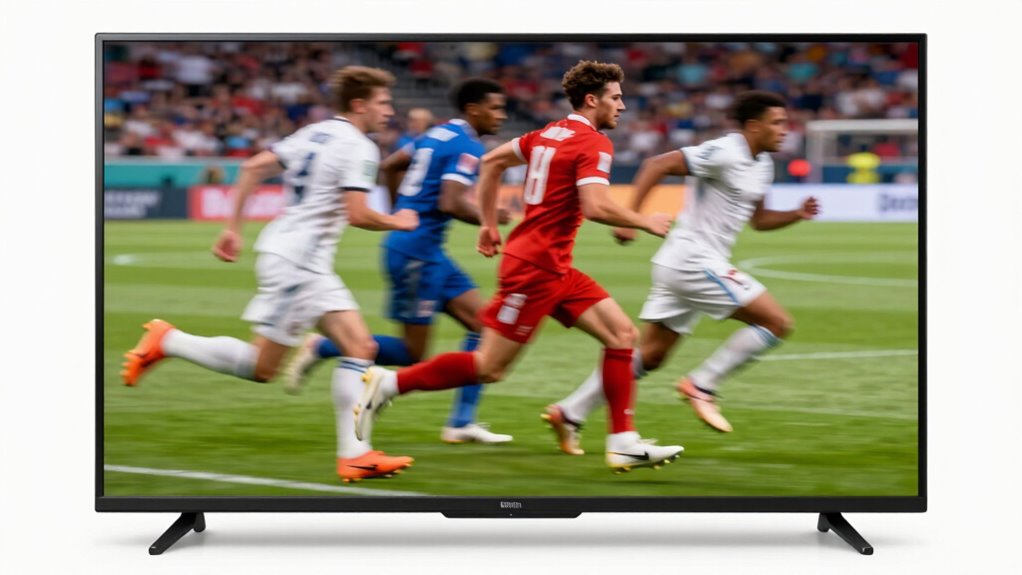
Motion smoothing is a technology that helps make fast-moving scenes appear smoother and more natural on your TV. It achieves this through frame interpolation, where new frames are inserted between original ones, creating a seamless flow. The process relies on motion estimation, which analyzes the movement within the existing frames to predict what the next frames should look like. By doing this, your TV can display a higher frame rate, reducing motion blur and judder during action scenes. Essentially, motion estimation tracks objects and camera motion, allowing the TV to generate intermediate frames that make fast motion appear more fluid. This technology is especially useful for sports and action movies, but it can sometimes give a surreal or “soap opera” effect that many viewers find distracting. motion estimation is a key component that enables this process to work effectively. Additionally, some viewers prefer to turn off motion smoothing because of the soap opera effect, which can make movies look less cinematic. Understanding how frame interpolation works can help viewers decide whether to enable or disable this feature for the best viewing experience.

Movie Night Date Night Box for Couples, Perfect Valentines Day Gifts with Couples Blanket, Popcorn Bowl Buckets, Re-usable Cups, Date Night Generator Cards, Movie Genre Dice, Gifts for Movie Lovers
The Ultimate Movie Night Date Gift: The DateNup movie night date box is not just a movie night...
As an affiliate, we earn on qualifying purchases.
Why Do Modern TVs Turn on Motion Smoothing Automatically?
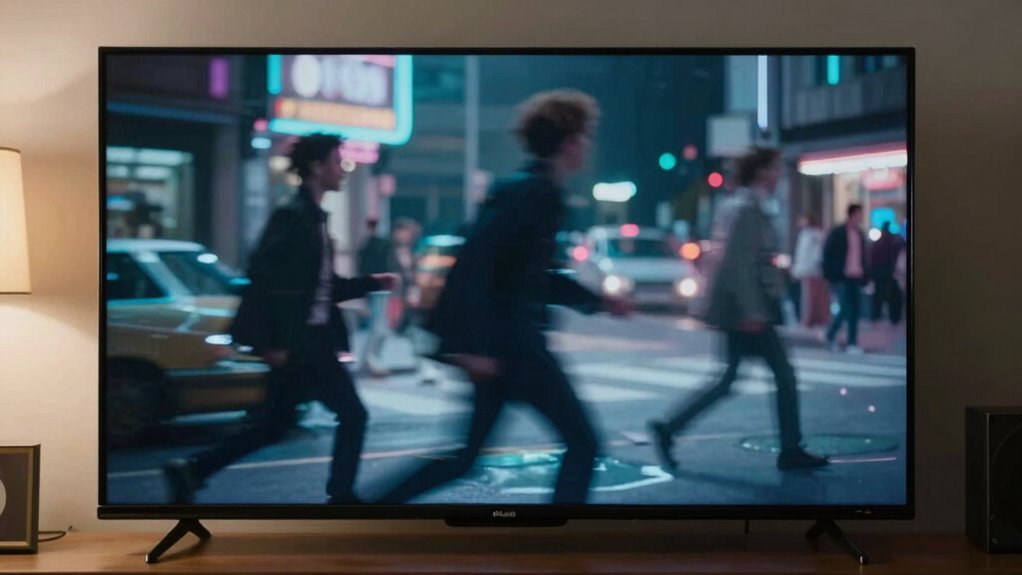
Many modern TVs are programmed to turn on motion smoothing automatically when you start watching certain types of content. They use motion interpolation to create intermediate frames, making fast-moving scenes look smoother. This feature is often enabled by default because manufacturers believe it enhances the viewing experience for sports and fast-paced shows. However, this can conflict with cinematic authenticity, which aims to preserve the director’s original vision. To prevent this, many TVs detect the type of content and switch off motion smoothing for movies, but sometimes it activates unintentionally. The automatic setting is designed to appeal to viewers who prefer a crisper, fluid picture, even if it compromises the traditional film look. Understanding these automation choices helps you better control your viewing experience.

MAFEX No.223 DAREDEVIL Daredevil Comic Version, Total Height: Approx. 6.3 inches (160 mm), Non-scale, Pre-painted Action Figure
Daredevil (Comic Ver.) is now available in MAFEX 3 types of head parts / Various exclusive weapon batons...
As an affiliate, we earn on qualifying purchases.
How Motion Smoothing Changes Your Movies and Shows
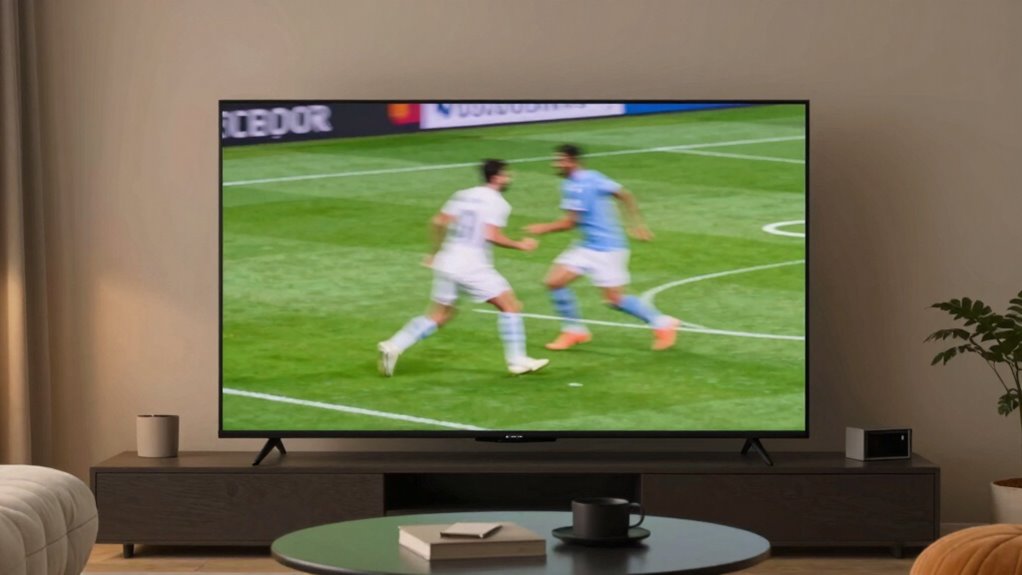
When motion smoothing is active, it can markedly alter the way your movies and shows appear on screen. It does this through frame interpolation, creating new frames between the original ones, which smooths out motion. This process can reduce judder, making fast-moving scenes look less choppy. However, it can also give movies a soap-opera effect, making them look unnatural. You might notice:
- A hyper-real, overly smooth look that distracts from the storytelling
- Reduced judder during fast pans or quick movements
- An artificial motion feel that can distort the director’s original vision
While motion smoothing aims to enhance viewing comfort, it often compromises the cinematic experience by changing the intended motion dynamics.

Concert Chronicles: Your Live Music Concert Journal
As an affiliate, we earn on qualifying purchases.
Signs Your TV Is Using Motion Smoothing Without You Realizing
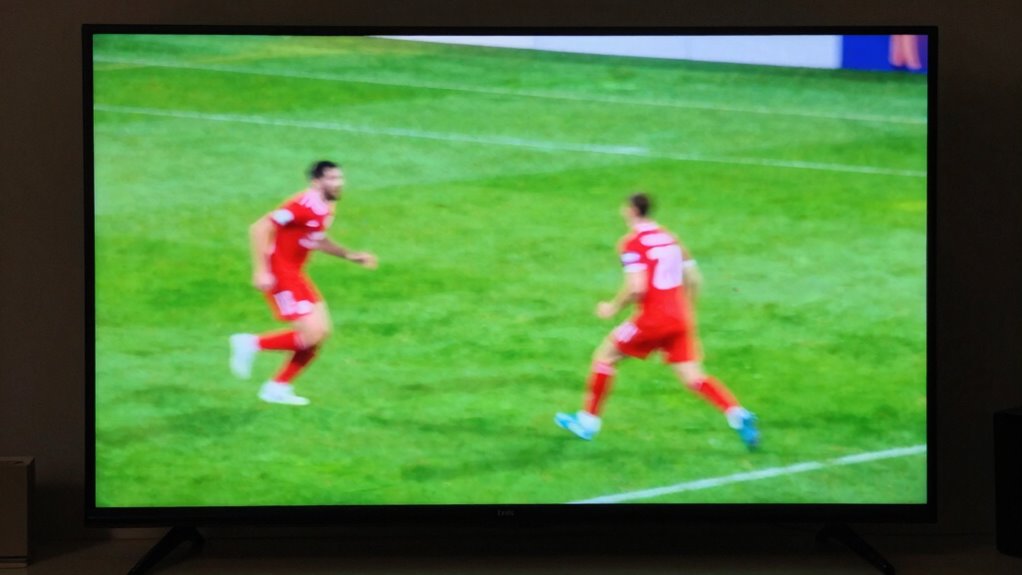
If you’re watching TV and notice that scenes look unusually smooth or overly polished, your device might be using motion smoothing without you realizing it. This often creates the soap opera effect, making movies seem less cinematic. Signs include unnatural motion, especially during fast scenes, and a feeling that the picture is artificially enhanced. To identify if motion smoothing is active, look for a noticeable difference when changing settings or using a test pattern. The key indicator is frame interpolation, which inserts extra frames to smooth motion. Additionally, understanding how visual processing affects your viewing experience can help you make better adjustments. Recognizing image enhancement techniques can also help you distinguish between authentic picture quality and artificially smoothed images. Being aware of display technology features can further aid in identifying unwanted processing effects that alter your viewing experience. Some modern TVs also offer motion settings that can be toggled on or off to reduce or eliminate this effect. Paying attention to nail biology might be less relevant here, but understanding how different display components work can also shed light on image quality issues.
How Motion Smoothing Affects Your Viewing Experience
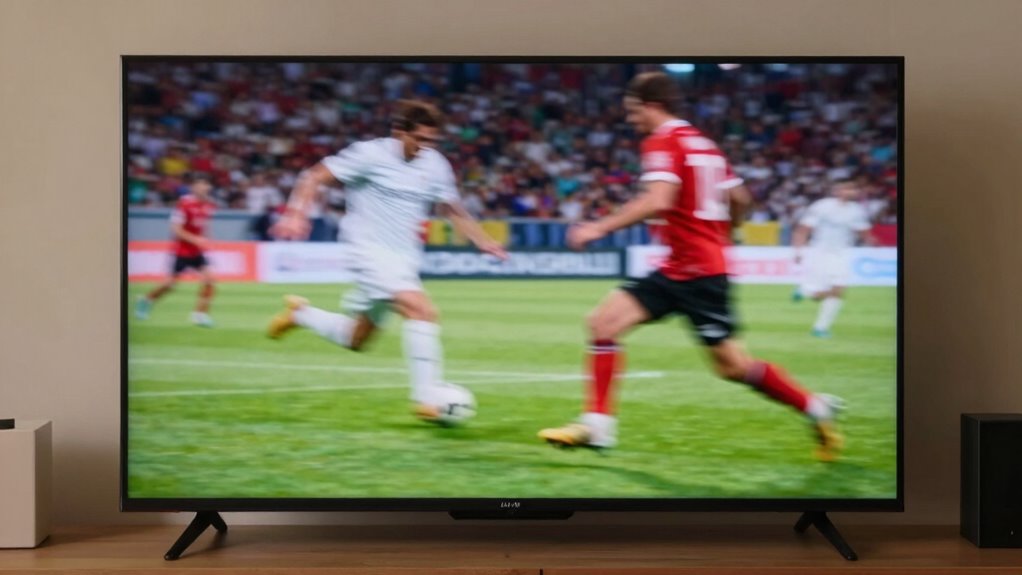
Motion smoothing can make fast-moving scenes look clearer, but it might also introduce unwanted artifacts that distract you. Sometimes, it causes images to look unnatural or overly smooth, affecting your overall viewing comfort. Understanding these effects helps you decide whether motion smoothing enhances or hinders your experience. Additionally, being aware of visual artifacts can help you choose the right settings for a more comfortable viewing experience. Adjusting these settings based on display technology can significantly improve your viewing satisfaction. Paying attention to signal processing techniques can further optimize image quality and reduce distracting effects. Familiarity with image processing can help in understanding how these artifacts are created and minimized, especially when considering different display technologies and their impact on motion rendering.
Clarity of Motion
Ever wondered how motion smoothing can impact the clarity of what you see on screen? When enabled, it uses frame interpolation to create extra frames, making fast motion appear smoother. However, this can sometimes reduce clarity because the added frames may introduce unnatural motion. You might notice:
- Excessive motion blur, making fast-moving objects look smeared or less sharp
- Reduced detail due to artificial frames blending with real ones
- A “soap opera effect” that disrupts the natural feel of movies and sports
While motion smoothing aims to improve clarity during quick scenes, it often has the opposite effect, blurring fine details and making motion look less natural. Your viewing experience becomes less authentic, especially in scenes with rapid movement. Understanding motion artifacts can help you decide whether to keep this setting enabled.
Image Artifacts
While motion smoothing can enhance the appearance of fast-moving scenes, it often introduces visual imperfections known as image artifacts. Frame interpolation creates new frames between original ones, which can lead to unnatural motion and a “soap opera” effect. These artifacts make scenes look overly smooth or fake, distracting you from the content. Additionally, motion smoothing aims for flicker reduction, but it can sometimes cause flickering or ghosting effects, especially in high-contrast scenes. These visual glitches break the immersion and make videos appear less authentic. You might notice strange edges, distorted motion, or double images, all of which diminish your viewing experience. Understanding these artifacts helps you decide whether to keep motion smoothing enabled or turn it off for a more natural picture. Moreover, some televisions use advanced image processing techniques that can intensify these artifacts, affecting overall picture quality.
Viewing Comfort
Although motion smoothing aims to create smoother videos, it can sometimes compromise your viewing comfort by causing eye strain or headaches. Frame interpolation, a key part of motion smoothing, generates additional frames that can feel unnatural or jarring. This process may also introduce motion artifacts, like ghosting or double images, which can distract your eyes and lead to discomfort over time. You might notice that fast-paced scenes become harder to watch without fatigue. To improve your viewing experience, consider these points:
- Reduce or turn off motion smoothing settings
- Opt for movies or shows with less rapid motion
- Adjust your TV’s picture settings for a more natural look
Additionally, understanding how motion artifacts affect image quality can help you make better adjustments to your display settings. Being aware of display calibration techniques can further enhance visual comfort and reduce unwanted artifacts. Moreover, exploring anti-aliasing techniques can help mitigate some of these visual issues, making your viewing experience more comfortable, especially when combined with proper video processing adjustments.
How to Tell If Your TV Has Motion Smoothing Features
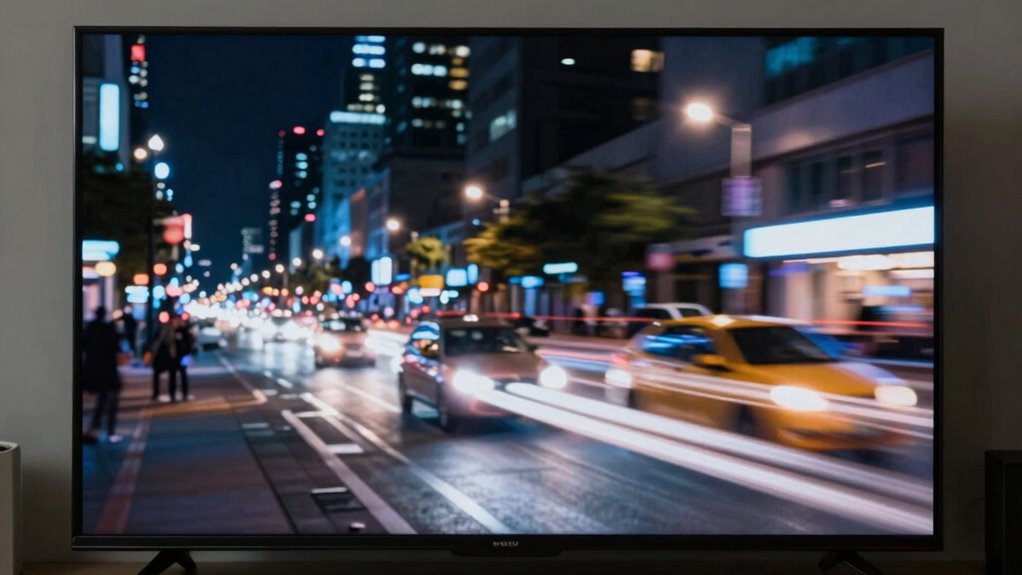
To determine if your TV has motion smoothing features, start by checking the settings menu. Look for options like “Motion Settings,” “Picture Settings,” or “Advanced Settings.” If you see options labeled “Frame Interpolation” or “Motion Enhancement,” your TV likely has motion smoothing. These features often include functions like flicker reduction, which smooths out fast motion but can cause a soap opera effect. Turn on or off these settings to see if your picture changes noticeably. Some TVs might have a dedicated button on the remote for quick access to motion smoothing controls. If you don’t find any options, consult your TV’s manual or manufacturer’s website, as some models hide these features deeper in menus. Additionally, understanding Free Floating can help you better recognize how motion smoothing alters the natural flow of images on your screen. Being aware of Warp Issues can also assist in identifying when motion smoothing causes unnatural distortions in fast-moving scenes, especially when judging motion quality.
How to Turn Off Motion Smoothing on Your TV (Step-by-Step)
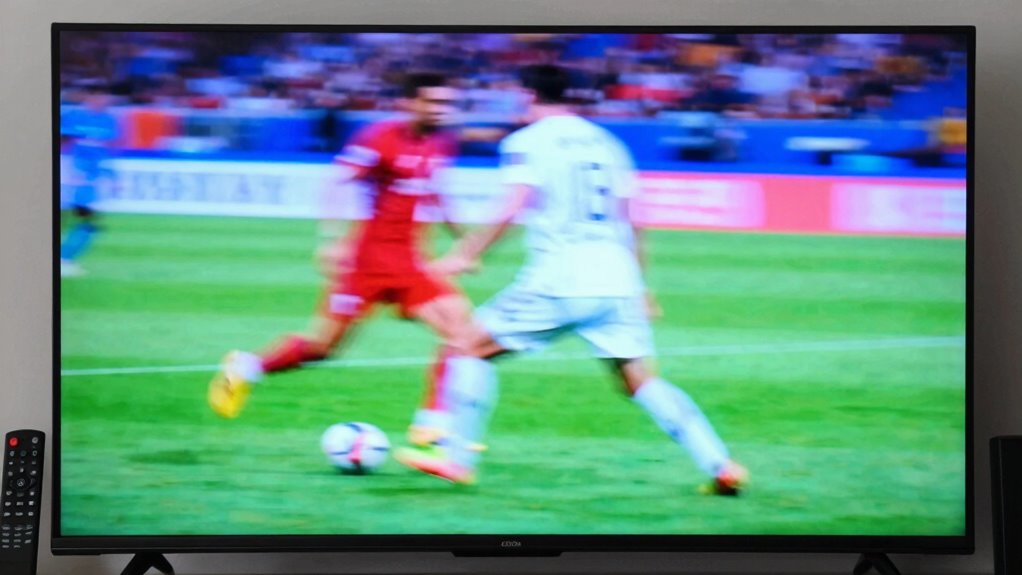
To turn off motion smoothing, you need to access your TV’s settings menu. Once there, locate the picture or display options and find the motion smoothing or motion enhancement feature. Finally, disable it to enjoy a more natural viewing experience.
Access TV Settings
Wondering how to disable motion smoothing on your TV? The first step is accessing the TV’s settings menu. You’ll want to navigate through the picture options to find where the picture enhancement features are located. Keep an eye out for settings related to motion or image processing, which often link to video calibration.
Here are some tips to help you get there:
- Use your remote’s menu or settings button to open the main menu.
- Locate the picture or display settings section.
- Look for options labeled “Motion Smoothing,” “TruMotion,” or “Auto Motion Plus” and select them.
Adjusting these settings allows you to turn off unnecessary picture enhancement, making your movies look more natural and true to life.
Disable Motion Smoothing
Keen to enjoy a more natural viewing experience? Disabling motion smoothing is key. When you turn off this feature, you eliminate unwanted motion interpolation that can make films look artificially smooth, disrupting the authenticity of film restoration. To do this, access your TV’s picture settings, locate the motion smoothing or similar option, and toggle it off. Some TVs label it as “TruMotion,” “MotionFlow,” or “Auto Motion Plus.” Here’s a quick guide:
| Step | Action |
|---|---|
| 1 | Open your TV’s settings menu |
| 2 | Find picture or display settings |
| 3 | Locate motion smoothing or interpolation |
| 4 | Turn it off or disable |
Turning off motion interpolation restores cinematic authenticity, making your viewing more natural.
Should You Keep Motion Smoothing On or Turn It Off?
Deciding whether to keep motion smoothing on depends on your viewing preferences and the type of content you’re watching. If you prioritize smooth motion and less motion blur, turning it on can be beneficial. However, if you value visual clarity and prefer a more natural look, turning it off might be better.
Consider these points:
- Motion smoothing can reduce motion blur but may introduce the “soap opera effect.”
- Keeping it on can make fast-paced sports and video games appear smoother.
- Turning it off preserves the original cinematic experience, with sharper images and natural motion.
Ultimately, experiment with both settings to see which suits your taste, balancing smoothness against the authentic feel of movies and TV shows.
Common Mistakes When Disabling Motion Smoothing
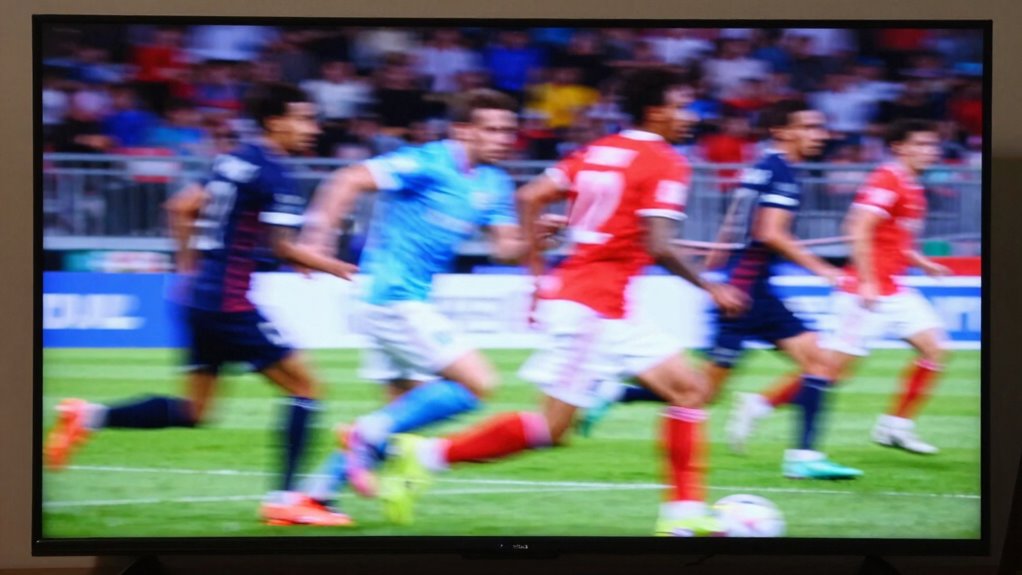
Many people overlook important settings when disabling motion smoothing, which can lead to unintended results. If you don’t carefully review all options, you might leave some features active or misconfigure other settings. Additionally, adjusting options incorrectly can cause visual artifacts or reduce picture quality instead of improving it.
Overlooking Settings Details
Disabling motion smoothing isn’t just about flipping a switch; overlooking specific settings can lead to unintended results, affecting your picture quality and sound settings. Small details matter, and missing them can cause your viewing experience to suffer. For example, you might forget to turn off motion interpolation on all connected devices, leading to inconsistent playback. Additionally, neglecting to disable related picture enhancement features can still cause the soap-opera effect. Don’t overlook sound settings—some TVs adjust audio when motion smoothing is disabled, impacting your overall experience. To avoid these mistakes, check the following:
- Ensure all connected devices have motion smoothing turned off
- Disable picture enhancement features that may still be active
- Confirm sound settings aren’t altered when adjusting motion settings
Incorrectly Adjusting Options
When disabling motion smoothing, it’s common to make mistakes by adjusting the wrong settings or misunderstanding how they interact. Many people focus solely on frame interpolation, thinking that turning it off will eliminate all motion issues. However, some TVs use motion enhancement features that can still cause the soap-opera effect even when frame interpolation is disabled. For example, settings like “Motion Plus” or “Auto Motion” may need to be turned off separately. Failing to do so can result in a still image that still appears unnaturally smooth or weird. Remember, disabling one feature doesn’t always turn off all motion smoothing effects. Carefully review all related settings, including motion enhancement options, to ensure you’re truly reducing the motion effects that make movies look odd.
Tips for Watching Movies Without Unwanted Motion Smoothing

If you find that motion smoothing ruins your viewing experience, adjusting your TV settings can make a significant difference. To reduce unwanted effects like excessive frame interpolation and motion blur, start by turning off or lowering motion smoothing features. This prevents the TV from creating intermediate frames that make motion look unnatural. You can also enable “Game Mode” or similar settings to minimize processing delay and frame interpolation. Another tip is to switch to a “Cinema” or “Movie” picture mode, which usually disables unnecessary motion smoothing features. Additionally, some TVs allow you to customize the level of frame interpolation, giving you more control over motion clarity and preserving the film’s original look. These adjustments help you enjoy movies without the distracting artifacts of unwanted motion smoothing.
Frequently Asked Questions
Does Motion Smoothing Affect Gaming Performance?
Yes, motion smoothing can affect your gaming performance. It may introduce artifacts that make fast-moving scenes look odd or less sharp, which can be distracting. However, many screens allow user customization, so you can turn it off or adjust settings to reduce artifacts. Disabling motion smoothing often results in smoother gameplay, especially for fast-paced games, giving you a clearer, more immersive experience.
Can I Customize Motion Smoothing Settings on My TV?
Yes, you can customize motion smoothing settings on your TV. To do this effectively, explore your TV’s menu options and adjust the feature based on your user preferences. Calibration tips include turning off motion smoothing for a more natural look or tweaking the settings for smoother gameplay. Experiment with these options to find the perfect balance that enhances your viewing experience without making movies or games look unnatural.
Is Motion Smoothing Harmful to My Eyes or Health?
Motion smoothing isn’t harmful to your eyes or health directly, but it can cause eye strain and visual fatigue if you watch for long periods. When motion smoothing makes fast-moving scenes look unnatural, your eyes work harder to process the images, leading to discomfort. To reduce this, take regular breaks, adjust your TV settings, or turn off motion smoothing if you notice eye strain or visual fatigue during extended viewing sessions.
How Does Motion Smoothing Impact Streaming Services?
Motion smoothing impacts streaming services by affecting video clarity and introducing motion artifacts. When you turn it on, you might notice a smoother picture, but it can also cause blurriness or ghosting effects that distort the original video quality. This setting can make fast-moving scenes look unnatural, reducing your viewing experience. Disabling motion smoothing enhances video clarity, giving you a more authentic and crisp picture, especially on streaming platforms.
Are There Specific Brands Known for Better Motion Smoothing Control?
You’ll find Sony TVs excel in motion smoothing control, thanks to their reputation for high-quality picture features. Imagine watching a fast-paced sports game; Sony’s advanced algorithms keep motion fluid without the soap opera effect. Their feature availability allows you to customize settings easily. This makes Sony a top choice if you want better motion smoothing control, ensuring your viewing experience stays natural and immersive.
Conclusion
If you find your movies looking unnatural with motion smoothing enabled, try turning it off. Imagine watching a recent sci-fi film where fast-paced scenes appear jittery or overly smooth—disrupting immersion. Turning off motion smoothing restores cinematic authenticity, making every scene feel more genuine. Don’t hesitate to experiment with settings; your viewing experience will improve once you find the perfect balance. After all, your TV should enhance, not hinder, your favorite movies.