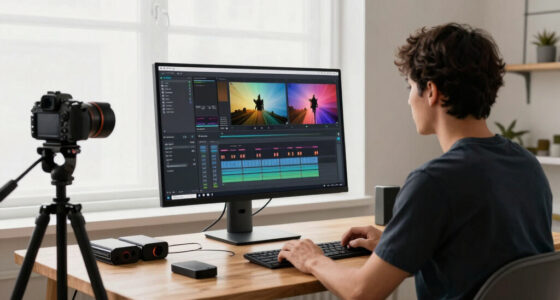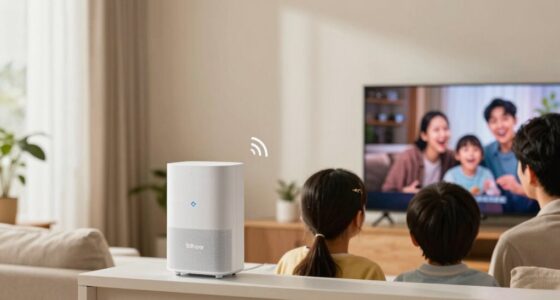

Common HDMI problems can mess up your viewing experience, but most have easy fixes. If you see a “no signal” message, check connections and try another port. Flickers? Secure your cables and update device firmware. For audio issues, verify your output settings are correct and cables are undamaged. Regular maintenance is key too—keep cables in good shape and update firmware. Want to know more about troubleshooting and maintenance tips? There’s plenty more to explore!

Get movie nights delivered free — and shop member deals
- Fast, free delivery on millions of items
- Access to Prime Big Deal Days deals on October 6–7
- Prime Video, Amazon Music and more included
Key Takeaways
- Ensure all HDMI cable connections are secure and undamaged to prevent no signal issues or glitches.
- Power cycle both the source device and TV to resolve handshake failures and blank screens.
- Test different HDMI ports and cables to identify faulty hardware causing connection problems.
- Regularly update device firmware to improve compatibility and fix audio or video issues.
- Inspect and clean HDMI ports to prevent dust buildup and ensure stable connections.
Identifying Common HDMI Problems
When you connect your devices via HDMI, you might encounter several issues that can disrupt your viewing experience. One common problem is HDMI compatibility issues, which arise when your devices don’t support the same HDMI version or format. This can lead to distorted images or audio problems. You may also notice that your screen goes blank or displays error messages, indicating a handshake failure between devices. Additionally, be cautious of HDMI port damage, which can occur from frequent plugging and unplugging. A damaged port can prevent a stable connection, causing frustrating interruptions. Identifying these common HDMI problems is essential to ensuring smooth, uninterrupted viewing, so keep an eye out for these signs when you set up your devices.
How to Fix HDMI No Signal Issues
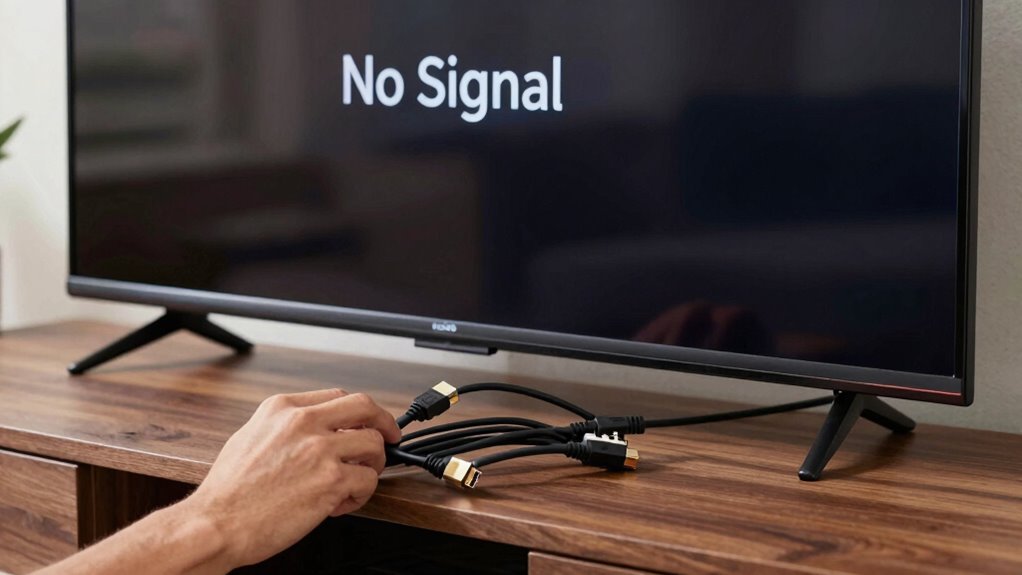
If you’re facing an HDMI no signal issue, don’t panic; there are several straightforward steps you can take to resolve it. First, check your HDMI cable connections to make sure they’re secure. Loose connections are often the culprit. Next, try a different HDMI port on your TV or device, as this can help identify if a specific port is faulty. Also, confirm that your HDMI devices are compatible; mismatched settings can lead to signal problems. If you haven’t already, power cycle both your source device and TV by unplugging them for a minute. Finally, testing with another HDMI cable can be an effective HDMI troubleshooting technique. Following these steps will likely get your signal back in no time!
Dealing With HDMI Flickers and Glitches
If you’re experiencing HDMI flickers and glitches, start by checking your cable connections to guarantee they’re secure. Loose or damaged cables can often be the culprit behind these annoying issues. Additionally, don’t forget to update your device’s firmware, as outdated software can lead to compatibility problems.
Check Cable Connections
One of the most common culprits behind HDMI flickers and glitches is loose or damaged cable connections. Check all your connections to verify they’re secure, as even a small gap can severely impact your connection quality. If you’re using different cable types, like HDMI 1.4 or HDMI 2.0, make sure they’re compatible with your devices to prevent issues. Inspect the cables for any visible damage, such as fraying or bent connectors, which can also lead to problems. If you find any issues, consider replacing your cables with high-quality options that support the necessary features for your devices. A firm connection and reliable cable type can make a significant difference in your viewing experience.
Update Device Firmware
Even with secure cable connections, you might still encounter HDMI flickers and glitches. One common culprit is outdated firmware. Updating your device’s firmware can greatly improve device compatibility and resolve these annoying issues.
| Device Type | Update Method |
|---|---|
| TV | Settings > Support |
| Console | Settings > System |
| Blu-ray Player | Settings > Update |
| PC | Manufacturer Website |
| Streaming Device | App Store/Settings |
Make sure to check for firmware updates regularly. Manufacturers often release updates that fix bugs and improve performance. By keeping your devices up to date, you can enjoy a smoother viewing experience without interruptions. Don’t let outdated firmware ruin your entertainment!
Fixing HDMI Audio Issues
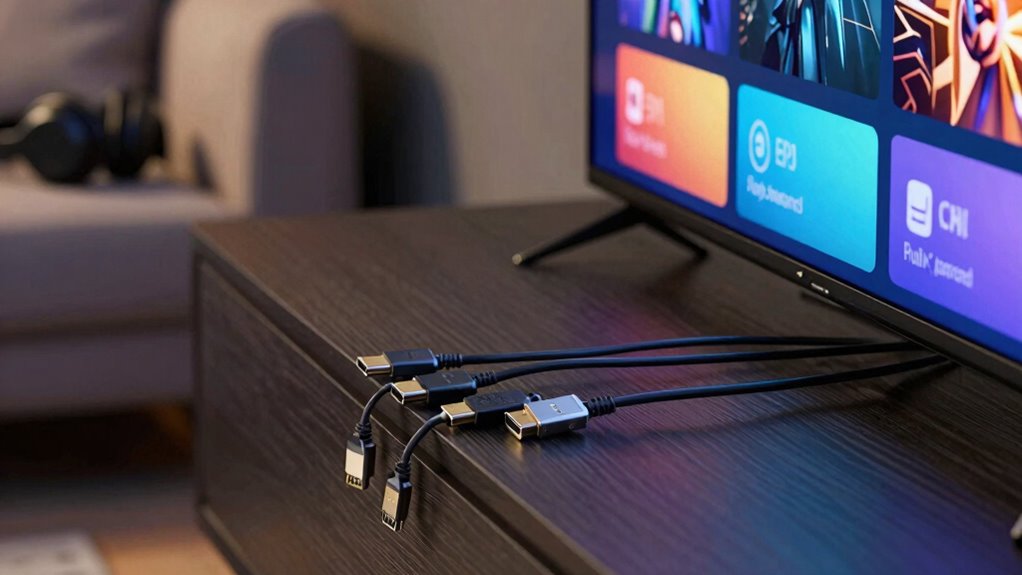
Although HDMI connections are generally reliable, audio issues can still arise, leaving you frustrated. If you’re experiencing audio sync problems, start by checking your device settings. Confirm that the audio output is set to HDMI and not to another source. You might also need to adjust the volume settings on both your TV and the connected device to eliminate any discrepancies. Sometimes, simply unplugging and replugging the HDMI cable can solve the issue. If the problem persists, try a different HDMI port or cable to rule out hardware faults. Finally, make sure your devices are updated, as outdated firmware can lead to audio glitches. With these steps, you should be able to restore clear and synchronized audio quickly.
Impact of HDMI Cables and Adapters
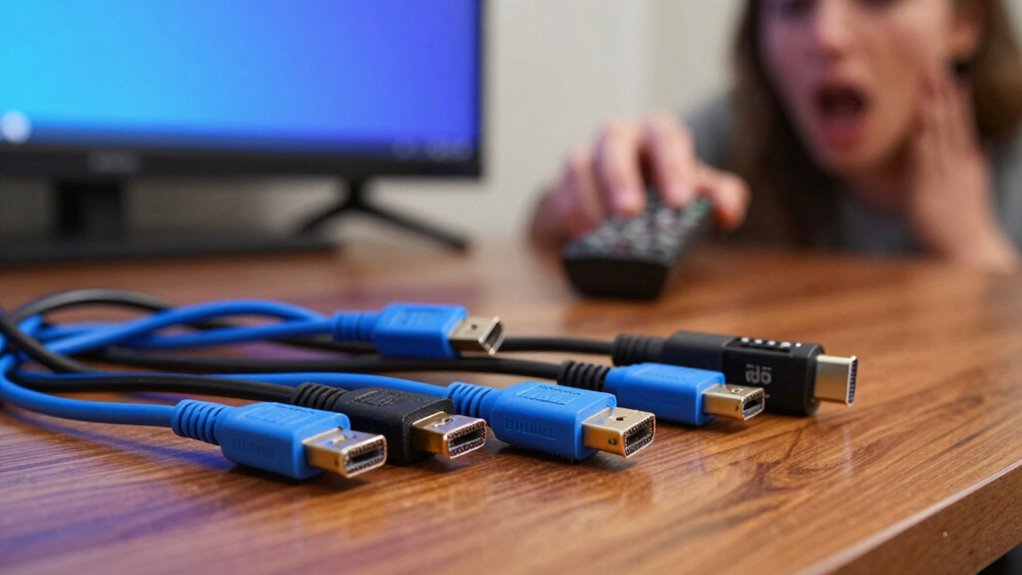
Audio issues can often stem from the quality of your HDMI cables and adapters. Low HDMI quality can lead to poor sound and video performance, so always choose high-quality cables. Confirm your cable compatibility matches the devices you’re using, as mismatched connector types can cause problems. Different adapter types can also impact performance, especially if they introduce signal interference. Pay attention to cable length; longer cables might weaken the signal, affecting resolution support. Always verify that your cables and adapters support the resolutions you need for the best viewing. Finally, check device compatibility to verify everything works seamlessly together. By addressing these factors, you can greatly improve your HDMI experience and reduce audio issues.
Tips for Maintaining Your HDMI Setup
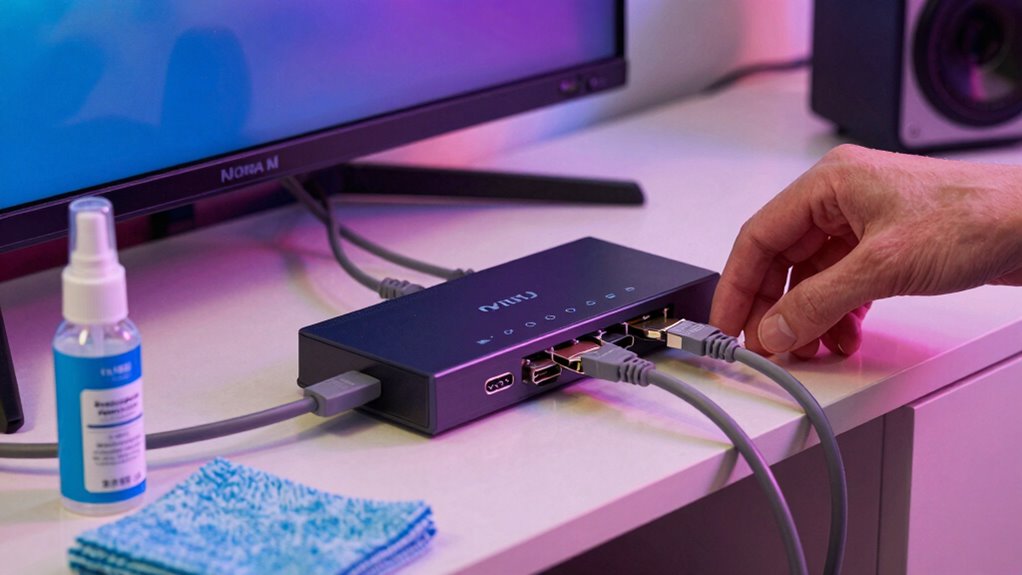
To keep your HDMI setup running smoothly, regular cable inspection is key. You should also practice proper cable management to prevent wear and tear. Don’t forget to update your device firmware to guarantee peak performance.
Regular Cable Inspection
While you might not think about it often, regularly inspecting your HDMI cables can prevent frustrating connectivity issues down the line. By keeping an eye on their condition, you’ll extend their cable lifespan and guarantee peak performance. Here are some tips for effective cable inspection: 1. Check for Damage: Look for frays, kinks, or visible wear that could hinder performance. 2. Inspect Connectors: Confirm the connectors are clean and free from dust or debris. 3. Regular Cleaning: Use a dry cloth to wipe down the cables and connectors, preventing buildup that can affect connectivity. 4. Monitor Cable Placement: Make sure cables aren’t pinched or tangled, which can lead to internal damage. Additionally, understanding filtration/suction basics can help you identify if dust or debris buildup inside connectors is affecting signal quality. Proper cable management practices can further reduce the risk of internal damage and connectivity problems. Regularly inspecting and maintaining your cables and connectors can help prevent these issues before they disrupt your setup.
Proper Cable Management
Effective cable management is essential for maintaining a reliable HDMI setup, as it not only enhances aesthetics but also minimizes the risk of connectivity issues. Start by prioritizing cable organization; label your cables to easily identify each one. Use cable ties or clips to bundle them together, preventing tangles and potential damage. When it comes to cable routing, guarantee your HDMI cables run smoothly along walls or furniture edges, avoiding sharp bends that could weaken the signal. Keep them away from heat sources to prevent deterioration. Regularly check your setup to adjust any loose cables, guaranteeing everything stays in place. By following these tips, you’ll enjoy a cleaner look and a more dependable HDMI connection.
Update Device Firmware
Maintaining your HDMI setup goes beyond just organizing cables; keeping your devices updated is equally important. Firmware updates can greatly enhance device compatibility, guaranteeing everything works smoothly together. Here are some tips to help you stay on top of updates:
- Check for Updates Regularly: Set reminders to check for firmware updates on all your devices.
- Read Release Notes: Before updating, review what each firmware update offers to understand its benefits.
- Update During Downtime: Schedule updates when you won’t need your devices, minimizing disruptions.
- Restart After Updates: Always restart your devices after a firmware update to guarantee changes take effect.
Frequently Asked Questions
Can HDMI Cables Be Used for Gaming Consoles?
Yes, HDMI cables can definitely be used for gaming consoles. In fact, they’re essential for achieving peak gaming performance. Make sure you check cable compatibility with your console to guarantee you’re getting the best experience possible. A high-speed HDMI cable can support high resolutions and refresh rates, enhancing your gameplay. So, grab a quality HDMI cable, and enjoy your gaming sessions without worrying about lag or visual issues!
How Do I Know if My HDMI Port Is Damaged?
You can tell if your HDMI port is damaged by looking for specific HDMI port signs. First, check if your device recognizes the connected HDMI cable; if it doesn’t, that’s a red flag. Next, try using a different cable and port to see if the issue persists. Testing HDMI with multiple devices can help confirm if the port or the cable is at fault. If problems continue, you might need to consult a technician.
What Is the Lifespan of an HDMI Cable?
The lifespan of an HDMI cable typically ranges from 5 to 10 years, depending on its durability and how well you maintain it. To extend its life, handle it gently, avoid bending or twisting, and keep it away from heat sources. Regularly check for frayed ends or loose connections. With proper HDMI cable maintenance, you’ll guarantee peak performance and reduce the risk of issues, so your devices stay connected without hassle.
Do HDMI Splitters Cause Signal Issues?
Yes, HDMI splitters can cause signal issues. When you use an HDMI splitter, you’re distributing the signal to multiple outputs, which can lead to HDMI signal degradation. This means that the more devices you connect, the weaker the signal might become. To maintain ideal HDMI splitter functionality, make sure you’re using high-quality splitters and shorter cables. Avoid connecting too many devices to a single splitter to minimize potential signal loss.
Can HDMI Support 4K Resolution?
Just as a painter needs the right canvas, your display needs HDMI standards to truly showcase 4K resolution. Yes, HDMI can support 4K compatibility, but it’s crucial to use the right version. HDMI 2.0 and above guarantees you enjoy that stunning clarity and vibrant colors at 60Hz. So, if you’re upgrading your setup, make certain you’ve got the right cables and devices to fully embrace the beauty of 4K.
Conclusion
So, the next time you face an HDMI headache, don’t panic just yet. Remember, most issues have simple fixes that can save you from a tech meltdown. Check your connections, swap out cables, and adjust settings; you might just find the solution hiding in plain sight. And who knows? With a little patience and these tips in your back pocket, you could transform a frustrating experience into a seamless viewing adventure. Ready to dive back in?
Fall Picks
fall essentials
As an affiliate, we earn on qualifying purchases.