
If you’re facing lip sync problems, start by checking for audio latency and ensuring your internet connection is stable. Look for symptoms like delayed speech or mismatched dialogue. Try adjusting audio delay settings, restarting your device, or checking cable connections. If issues persist, assess hardware and software for conflicts. Regular monitoring during events can help catch problems early. Want to explore more strategies for seamless audio-visual alignment? The next steps will guide you further.

Get movie nights delivered free — and shop member deals
- Fast, free delivery on millions of items
- Access to Prime Big Deal Days deals on October 6–7
- Prime Video, Amazon Music and more included
Key Takeaways
- Check audio settings on your device or streaming service to ensure proper configuration and eliminate sync issues.
- Inspect all cables and connections to confirm they are secure and functioning properly.
- Analyze your internet connection speed and stability to rule out buffering as a cause of delay.
- Adjust audio delay settings on your device to synchronize sound with video more accurately.
- Restart the app or device to refresh the system and potentially resolve any temporary sync problems.
Common Causes of Lip Sync Issues and How to Fix Them
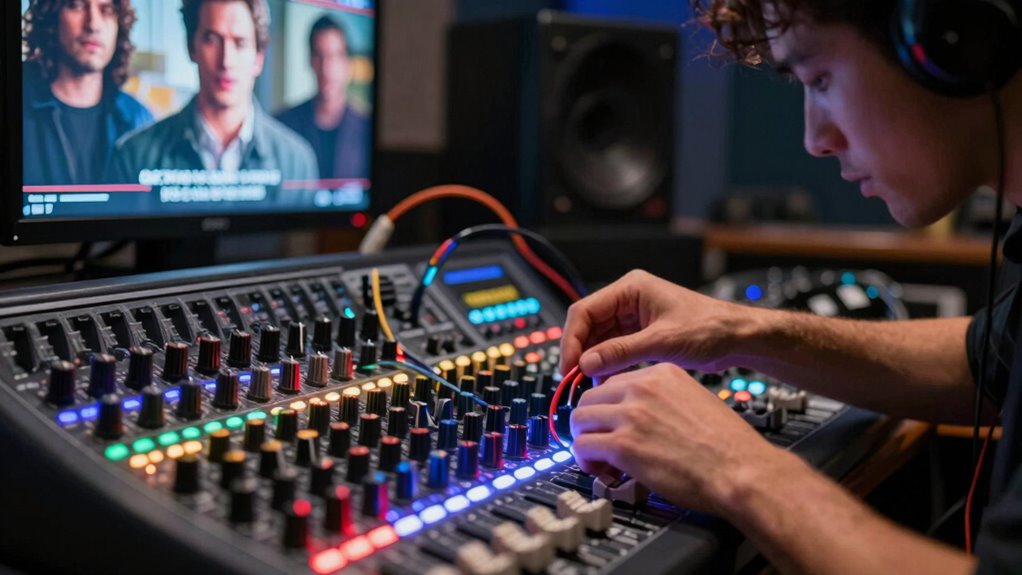
When you’re watching your favorite show, nothing’s more frustrating than seeing characters’ lips move out of sync with their dialogue. This common issue often stems from audio latency, where the sound takes longer to reach your speakers than the video does to display. Another culprit can be video buffering, which occurs when your internet connection isn’t stable, causing delays in the video stream. To fix these problems, start by checking your internet speed and resetting your router if necessary. You might also want to adjust your audio settings on your device or streaming service. If you’re using an external sound system, make sure it’s properly connected and updated. With a few tweaks, you can get back to enjoying your shows seamlessly.
Recognizing Common Lip Sync Symptoms
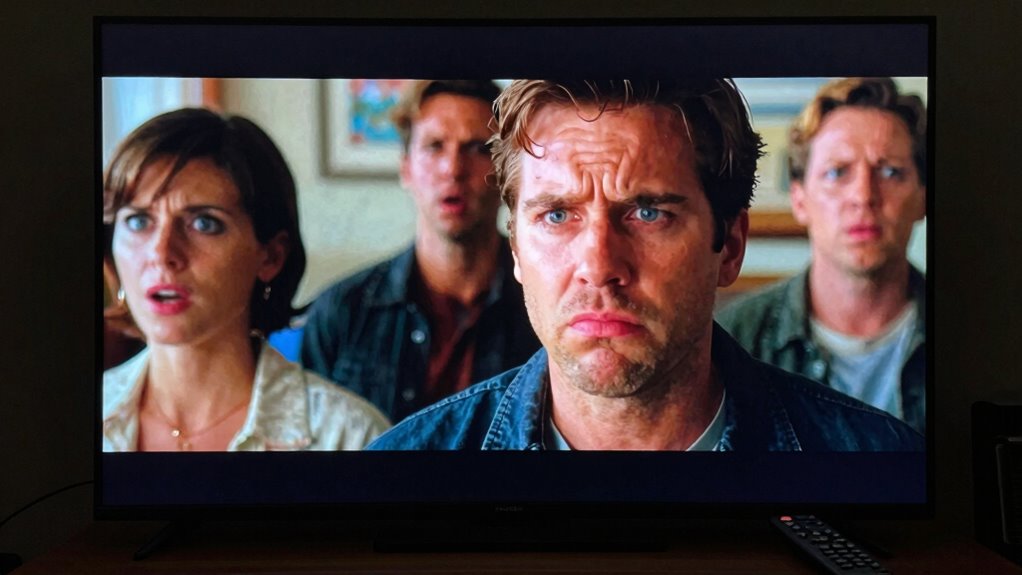
How can you tell if you’re experiencing lip sync issues? Recognizing lip sync symptoms is essential for a smooth viewing experience. Look out for these common signs of audio delay:
- The actor’s mouth moves, but the sound comes later.
- You hear dialogue that doesn’t match the speaker’s lip movements.
- Sounds like clapping or explosions occur before you see the action.
- Background noise and music seem out of sync with on-screen events.
- Characters’ emotional expressions don’t align with their spoken words.
If you notice any of these symptoms, it’s likely you’re dealing with a lip sync problem. Identifying these issues early can help you take steps to address them effectively.
Quick Fixes for Audio-Visual Mismatches
If you’re dealing with audio-visual mismatches, there are several quick fixes that can restore harmony to your viewing experience. First, check your device settings. Look for an option to adjust audio delay; sometimes a simple tweak can eliminate the mismatch. If you’re streaming, try renewing the app or restarting your device, as this can resolve temporary video lag. Make certain your cables are securely connected, as loose connections can cause sync issues. If you’re using external speakers, confirm they’re properly configured to match your video source. Finally, consider updating your software or firmware; outdated versions can lead to persistent audio delays. These quick adjustments can markedly improve your overall viewing experience.
Diagnosing Hardware vs. Software Sync Problems?
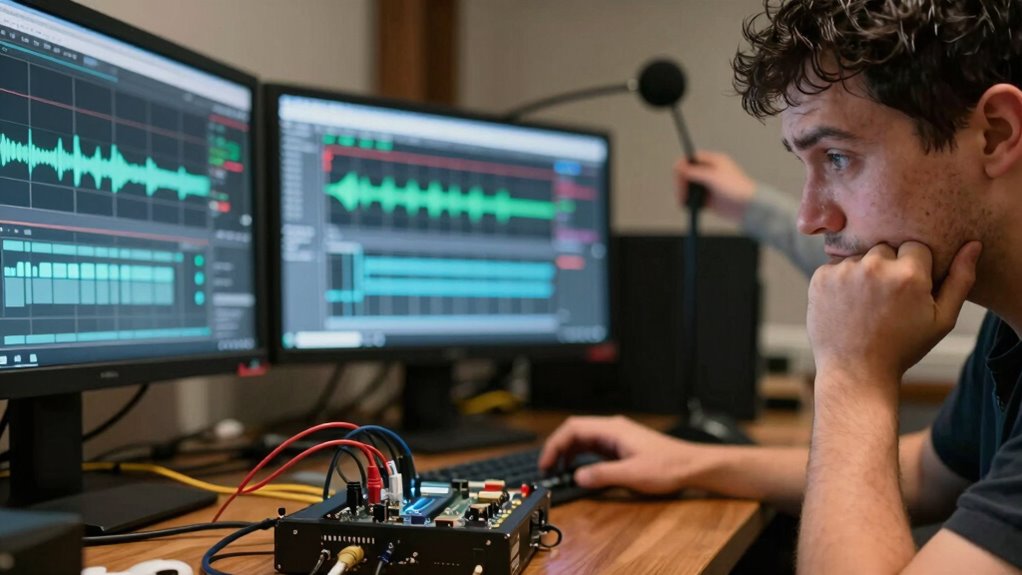
When you’re facing lip sync issues, it’s essential to pinpoint whether the problem lies with your hardware or software. Start by checking your devices for any loose connections or outdated drivers that could cause lag. Then, analyze your software settings to see if conflicts are affecting the audio-visual sync.
Identifying Hardware Issues
While troubleshooting lip sync issues, it’s crucial to differentiate between hardware and software problems. Start with hardware diagnostics to identify potential equipment compatibility issues. Here are some key steps to take into account:
- Check all cables for secure connections and damage.
- Test different devices to see if the issue persists across multiple setups.
- Inspect your audio output settings to verify they’re configured correctly.
- Update firmware on your audio/video equipment to the latest version.
- Evaluate your network connection if streaming content, as latency can cause sync issues.
Analyzing Software Conflicts
After verifying your hardware is functioning properly, it’s time to look at the software side for potential conflicts. Start by checking for software updates; outdated applications can lead to sync issues. Confirm that your media player and any video editing software are up to date. Next, examine codec compatibility. Sometimes, the codec used for video or audio can cause delays if it’s not properly supported by your software. If you’re using third-party plugins, they might also create conflicts. Try disabling them temporarily to see if that resolves the sync problem. By addressing these software factors, you can effectively diagnose whether the issue lies within your hardware or software settings. Additionally, understanding codec compatibility is essential, as it can significantly impact playback performance and sync accuracy.
How Streaming and Compression Impact Lip Sync
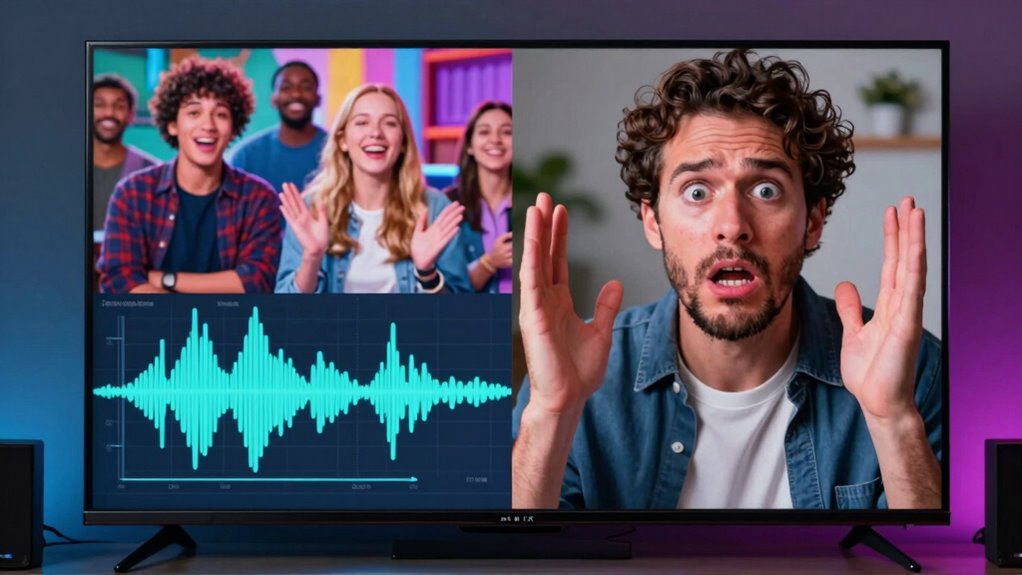
As you stream your favorite shows, the interplay of compression algorithms and network conditions can lead to frustrating lip sync issues. High streaming latency and compression artifacts can disrupt the audio-visual experience, making dialogue feel out of sync. Here are some factors to take into account:
- Network Speed: Slow connections can increase latency.
- Compression Techniques: Different services use varying algorithms, affecting sync.
- Device Performance: Older devices may struggle with decoding video and audio simultaneously.
- Streaming Resolution: Higher resolutions demand more bandwidth, potentially causing lag.
- Content Source: Live streaming often has more sync issues compared to pre-recorded content.
Essential Tools for Testing Lip Sync Accuracy
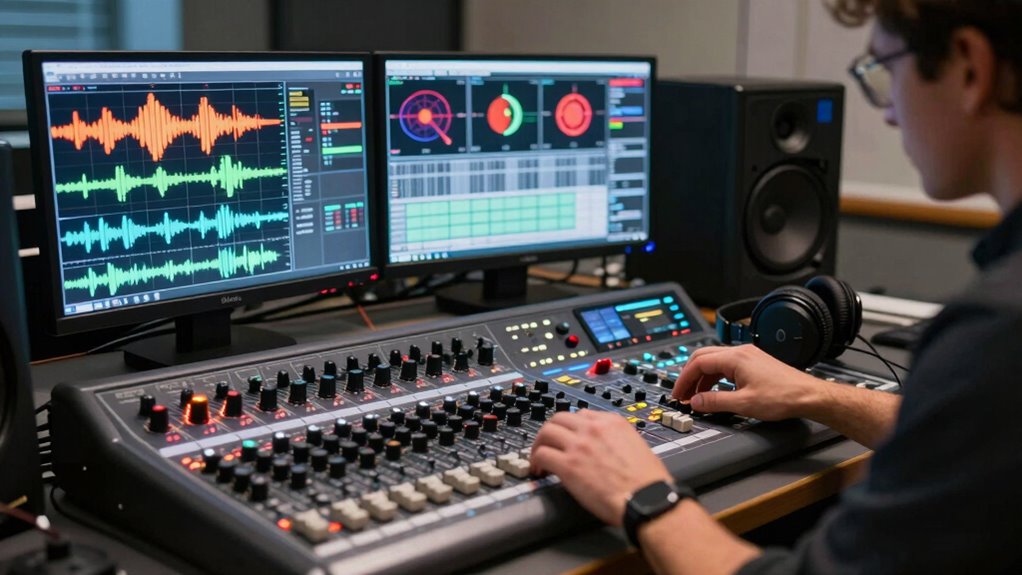
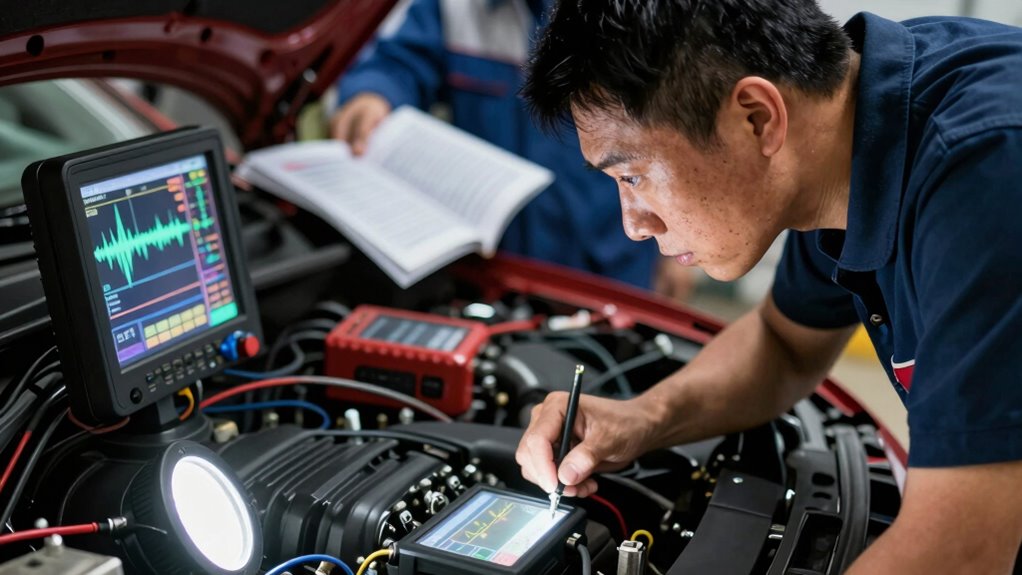
To accurately test lip sync issues, you’ll want to employ specific tools designed for measuring audio-visual alignment. Start with reliable testing software that can identify audio delay during video playback. Use monitoring tools to observe both audio and video signals simultaneously, ensuring you catch any discrepancies. Sync calibration is vital; adjust settings based on your observations to achieve perfect alignment. Implement troubleshooting techniques that focus on signal processing and equipment compatibility, as mismatched devices can exacerbate sync issues. By leveraging these essential tools, you can effectively pinpoint and address lip sync problems, enhancing the overall viewing experience. Don’t underestimate the importance of precise measurements in maintaining perfect audio-visual harmony.
Preventing Future Lip Sync Issues
While it’s crucial to address existing lip sync issues, preventing them from occurring in the first place can save you time and frustration. By staying informed about future technologies and audio advancements, you can minimize the likelihood of these problems. Here are some proactive steps you can take:
- Regularly update your audio and video software to the latest versions.
- Test your equipment before important events to catch potential issues early.
- Invest in reliable hardware that supports new audio advancements, such as smart wellness tech that can enhance your overall setup. Engaging in creative outlets like clay bead bracelets can also provide a mental break that helps you approach technical problems with a fresh perspective. Additionally, understanding strength training fundamentals can improve your overall coordination and timing during presentations. Implementing smart HVAC controls can also optimize your environment for better audio performance.
- Maintain a consistent workflow to synchronize audio and video seamlessly.
- Educate your team on best practices for managing sound and visual elements. Additionally, understanding kitchen science can enhance your ability to troubleshoot audio-related problems effectively.
Best Practices for Ensuring Lip Sync in Live Events
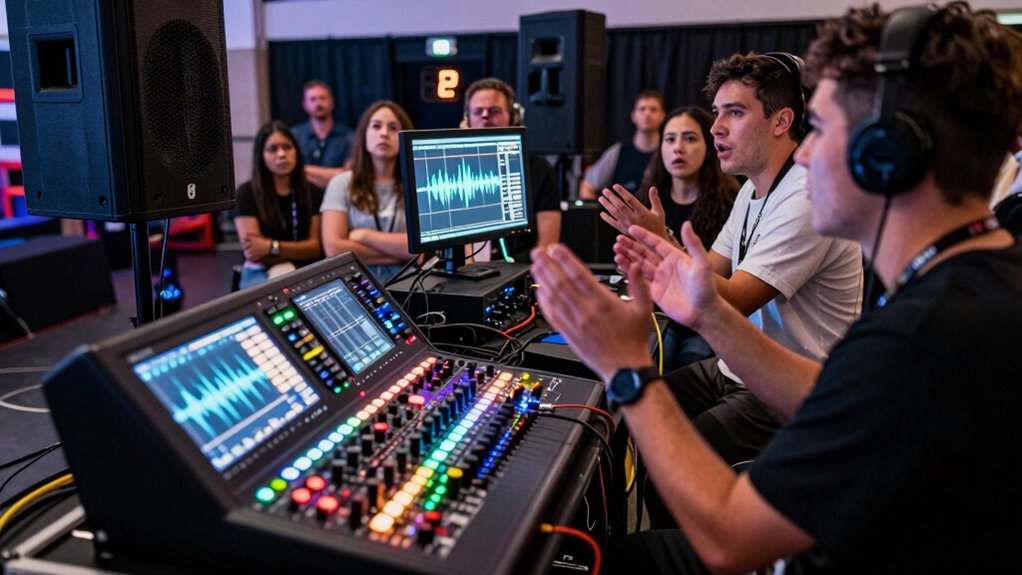
Guaranteeing lip sync in live events is essential for delivering a polished performance, so implementing best practices can make all the difference. Start by conducting thorough audio calibration before the event. This guarantees that sound levels are balanced and that the audio is in sync with visual elements. Next, focus on latency reduction; using high-quality equipment can considerably minimize delays. Regularly monitor your audio and video feeds during the event to catch any sync issues immediately. Additionally, rehearsing with the performers helps identify potential problems early on. Finally, ensure your team is trained to troubleshoot any unexpected issues quickly, keeping the show running smoothly. By following these steps, you’ll create an engaging, seamless experience for your audience.
Frequently Asked Questions
Can Lip Sync Issues Occur With Subtitles or Captions?
Yes, lip sync issues can occur with subtitles or captions. When subtitle synchronization isn’t accurate, it can lead to a disconnection between what’s being said and what you see on-screen. Caption timing is essential; if captions appear too early or late, it disrupts your viewing experience. To enjoy a seamless experience, guarantee the subtitles and captions align perfectly with the audio. Adjusting the timing can help resolve these synchronization problems effectively.
How Do Different Devices Affect Lip Sync Performance?
Did you know that nearly 30% of viewers experience audio delay issues across different devices? Device compatibility plays an essential role in lip sync performance. For instance, older TVs may struggle with audio delay when streaming content, while newer devices often minimize this issue. Streaming platforms also vary; some may introduce lag on certain devices. Ensuring all your devices are compatible can greatly enhance your viewing experience and reduce frustrating lip sync problems.
Are There Specific Formats That Are Prone to Lip Sync Problems?
Yes, certain video formats and audio codecs can be prone to lip sync problems. For instance, formats like AVI or some older MPEG versions may struggle with synchronization if the audio codec doesn’t match the video’s frame rate. You’ll often notice issues when streaming content due to varying compression methods. It’s essential to choose compatible formats and codecs to minimize these frustrating sync issues while watching your favorite shows or movies.
How Can I Test Lip Sync Without Specialized Tools?
You can test lip sync by simply playing a video with clear dialogue and watching for any audio delay. Use your device’s video playback features to pause and play the video, paying close attention to when the audio matches the lip movements. If you notice a lag, it indicates a sync issue. Try different formats or devices to see if the problem persists, helping you pinpoint the source of the delay.
What Role Does Internet Speed Play in Lip Sync Accuracy?
Internet speed greatly impacts lip sync accuracy. If you experience high internet latency, delays can cause audio and video to fall out of sync, making it frustrating to watch. Additionally, low bandwidth can create buffering issues, further exacerbating the problem. To guarantee smooth playback and precise lip sync, you should check your internet connection and upgrade if needed. A reliable connection helps keep everything aligned, enhancing your viewing experience.
Conclusion
In a world where every second counts, getting lip sync right is essential for an engaging experience. By identifying common causes and using the right tools, you can tackle these issues head-on. Whether it’s a simple fix or a deeper problem, you now have the knowledge to keep your audio and visuals in harmony. Remember, a stitch in time saves nine, so staying proactive will help you avoid future sync headaches. Enjoy seamless viewing!
Fall Picks
fall essentials
As an affiliate, we earn on qualifying purchases.